
Just subscribed to your IPTV Trends package and not sure how to get started on your Firestick or Android device? Don’t worry – this extensive guide will bring you through the installation and setup procedure step by step, replete with helpful screenshots.
You can enter your IPTV login details and enable installations from unknown sources with our simple and quick procedures. You’ll be able to access a variety of entertainment options in a matter of minutes, such as live TV stations, popular films, and series that are perfect for binge-watching.
Follow this tutorial carefully to ensure a successful setup and start enjoying a smooth, high-quality streaming experience on your Firestick or any Android-based device.
Install and Set Up IPTV Trends
We have developed a concise, step-by-step guide that is organized into three distinct sections. Each section is specifically designed to guide you through the setup process with precision and simplicity, whether you are using a Firestick or any other Android-based device.
First, we will demonstrate how to activate “Unknown Sources” to prepare your device for installation. We will next assist you in obtaining the Downloader program, which will allow you to run the IPTV Trends app. At final, you will follow a basic process to set up the IPTV Trends app and set it up using your membership details.
Our objective is to ensure that your installation is both stress-free and seamless by deconstructing the process into manageable steps. Let us commence—one step at a time.
Step 1 : Allow Unknown Sources
Start by getting your Firestick ready for the IPTV Trends setup:
- From your Firestick’s home screen, go to the ‘Settings‘
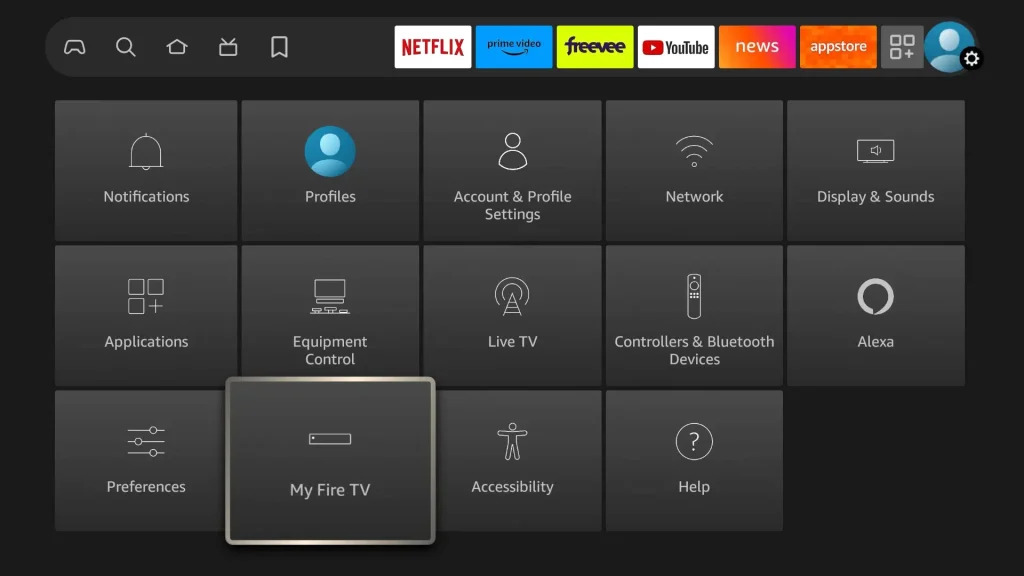
- Scroll to choose ‘My Fire TV‘ > About > Press the OK button ten times to activate Developer Options by highlighting Fire TV Stick 4K Max (or any other depending on the device you own).
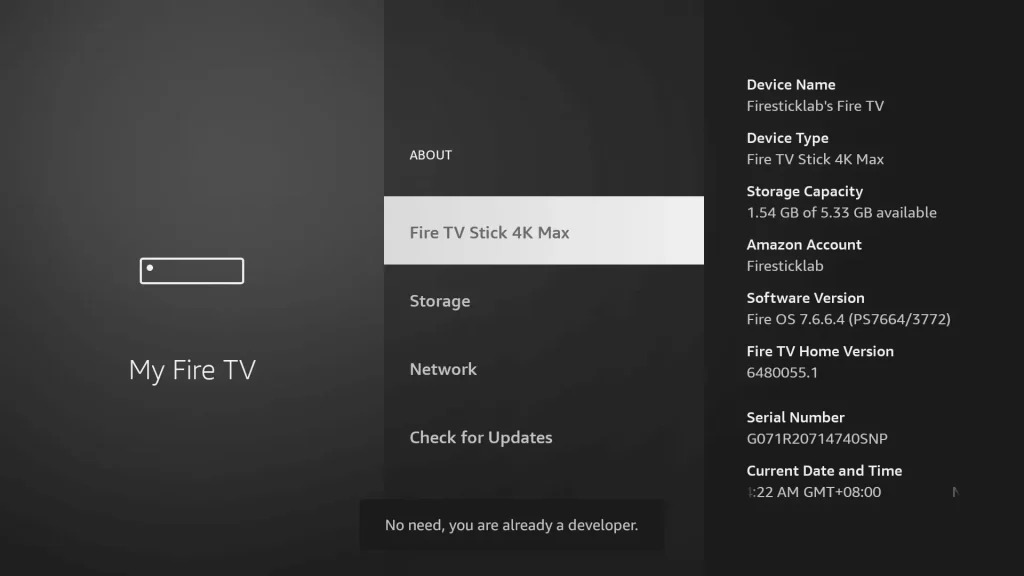
The first step is now accomplished and let’s go to the next Step to Get the Downloader, after receiving the app we have to Enable the Unknown Sources for Downloader app in the following tutorial.
Step 2: Install Downloader App on Firestick
Firestick users wanting to sideload apps not on the Amazon software Store will find the Downloader software to be an essential tool. By typing the app’s URL or searching the web, this simple tool lets you immediately download and install third-party apps onto your Firestick.
The Downloader app’s simple design makes it easier to get and run APK files, hence expanding a larger spectrum of entertainment possibilities outside the basic choices.
To acquire the Downloader immediately on Firestick, or from Google Play Store (for Android device users), follow the accompanying steps:
- From the Menu, select Find or Magnyfying Glass icon under Home Screen.
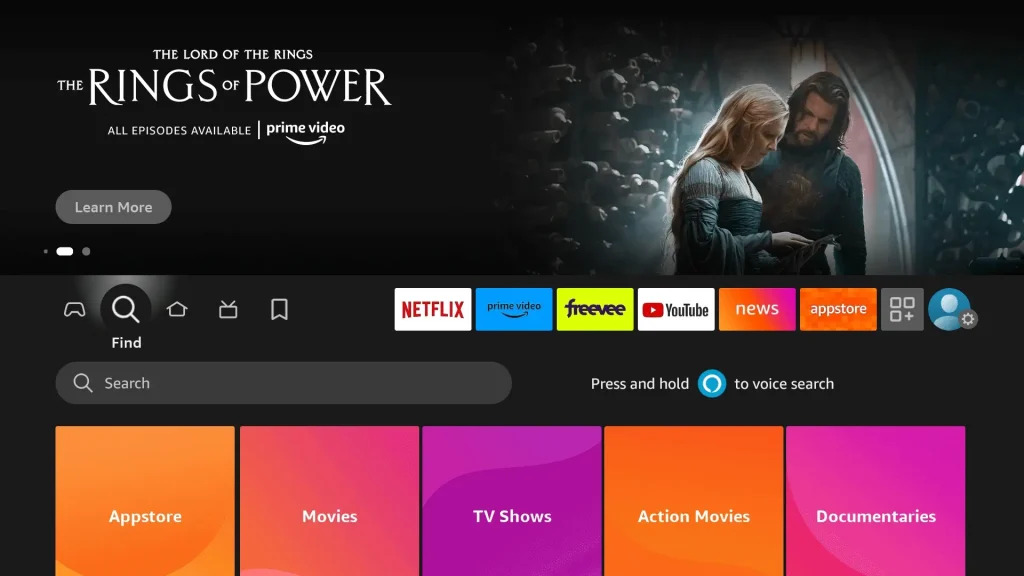
- Using the On-Screen keyboard, type the “Downloader“.
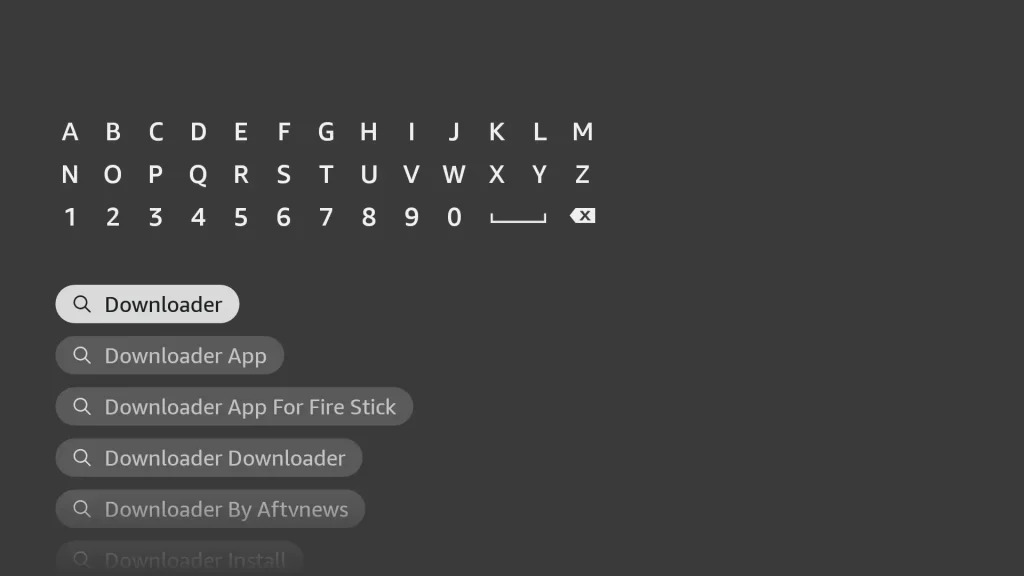
- The Downloader has the Orange Background, so make sure you are Downloading the Right program.
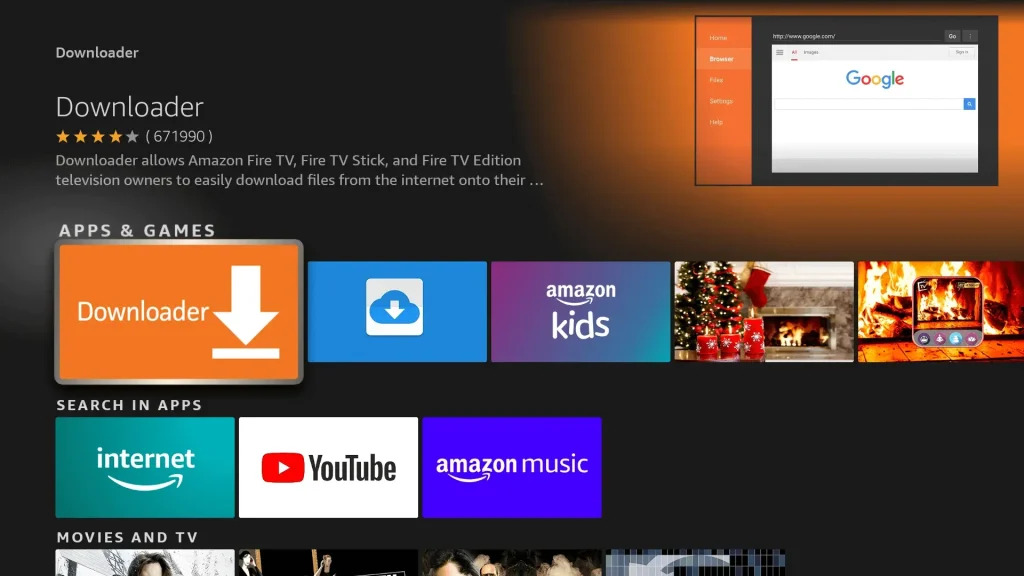
- From the following screen, select Download.
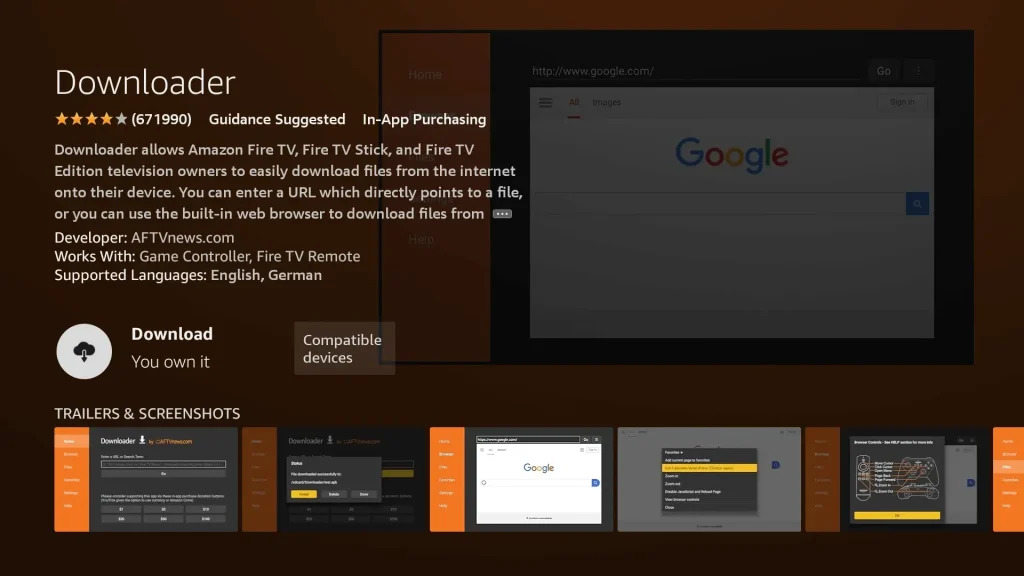
- Once installed, do not open it!
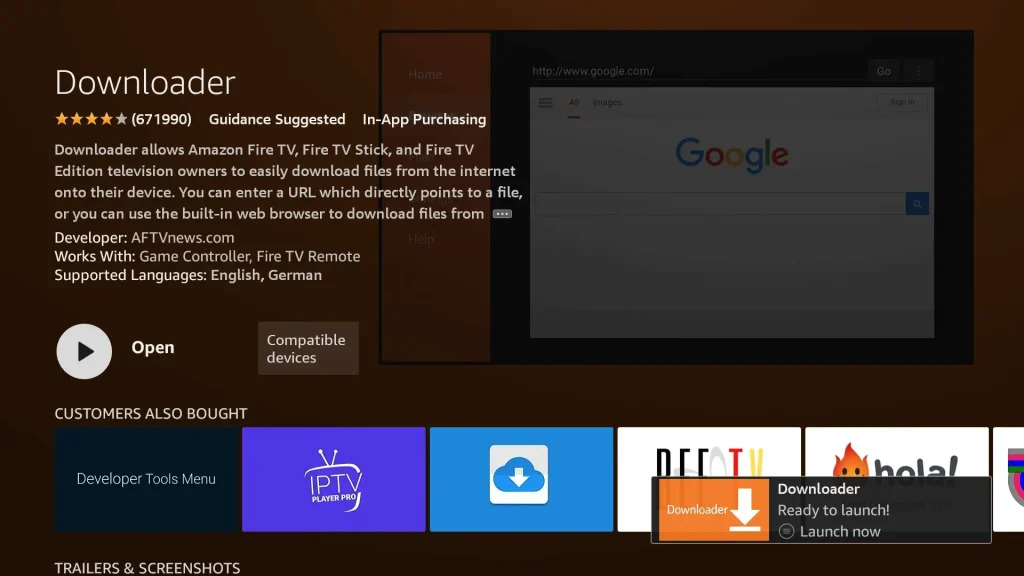
Allow Unknown Sources 1.2:
Follow these instructions to make sure the Downloader app can set up IPTV Trends on your device:
- From the My Fire TV menu, go to your device’s Settings > Developer Options.
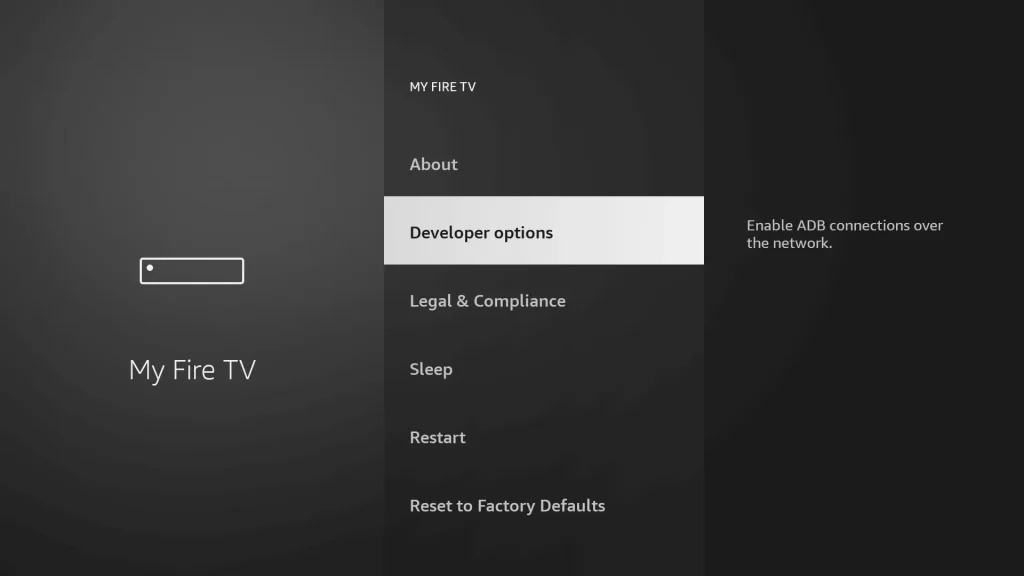
2. Look for ‘Install Unknown Apps‘ or ‘Apps from Unidentified Sources‘ and choose it
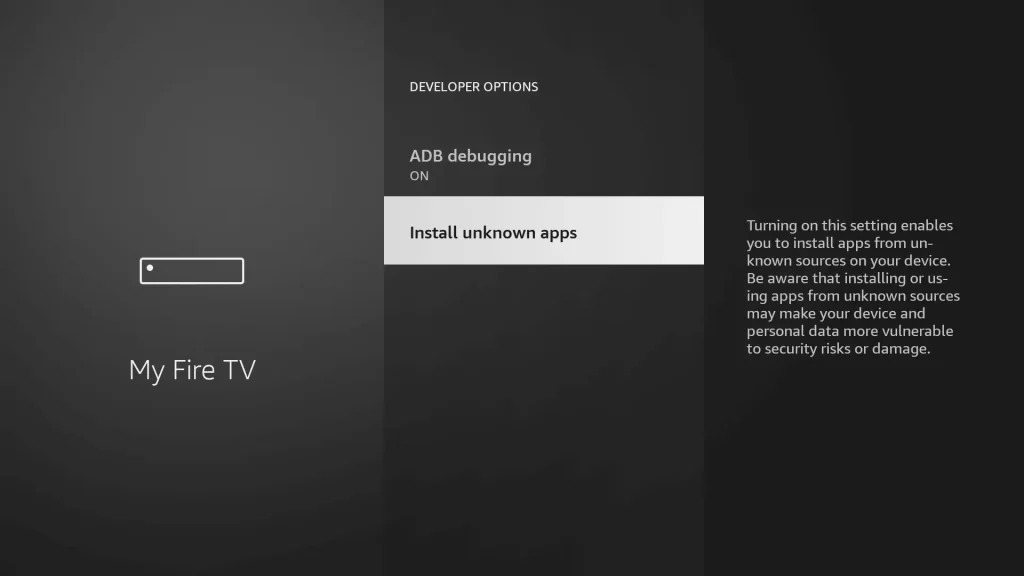
3. A list of apps will be visible; find ‘Downloader‘. ‘Off‘ will show.
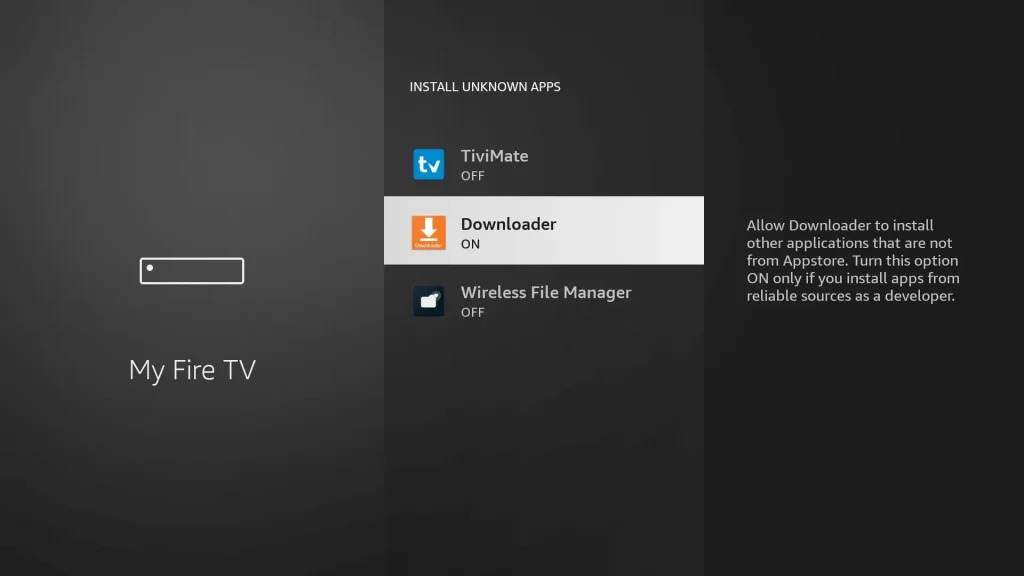
4. To switch the option to ‘On,’ hover over the ‘Downloader’ app and press ‘OK’ on your remote. on your remote.
Enabling this option lets the Downloader app install third-party programs like IPTV Trends not accessible via the official app store.
Step 3: install IPTV Trends by downloading it
We are finally ready for the last step to obtain the IPTV Trends app and set up the app, review the below steps with screenshots and avoid making any issues now that we have allowed Unknown Sources for Downloader.
- Click the Applications icon next to the Profile on the Home Screen.
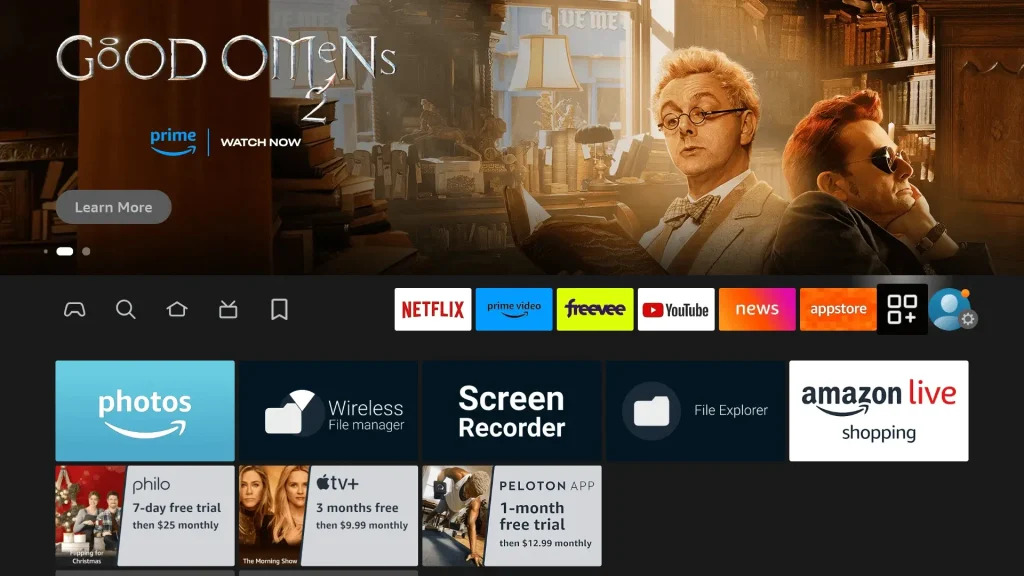
- Launch the Downloader app and scroll down.
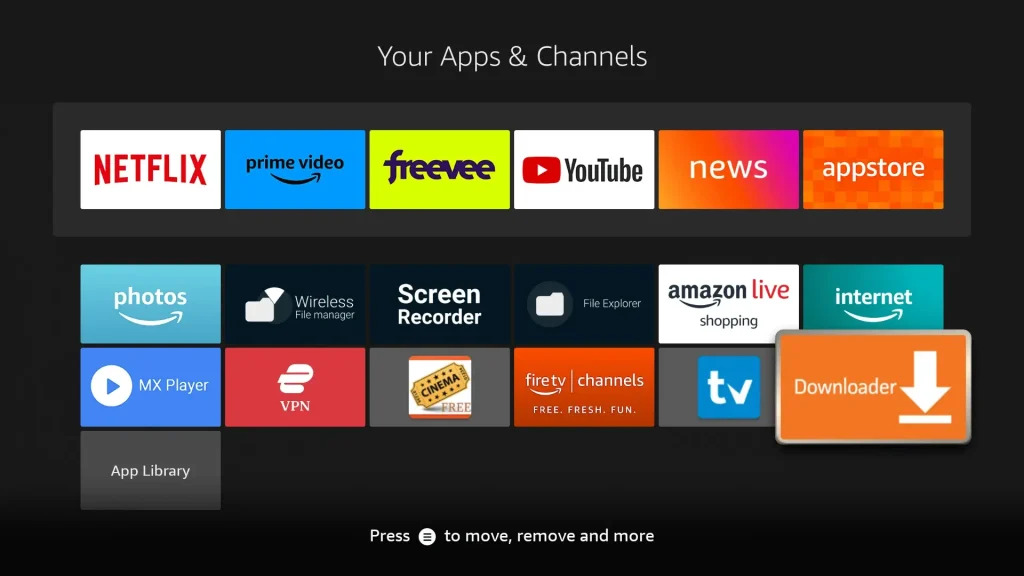
- Press Got it when the Quick Guide Menu appears.
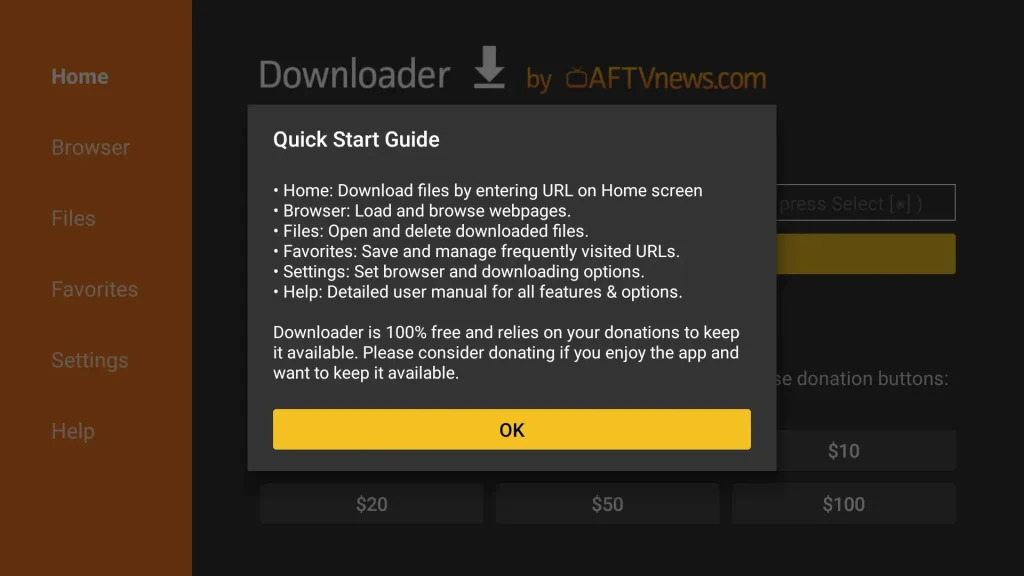
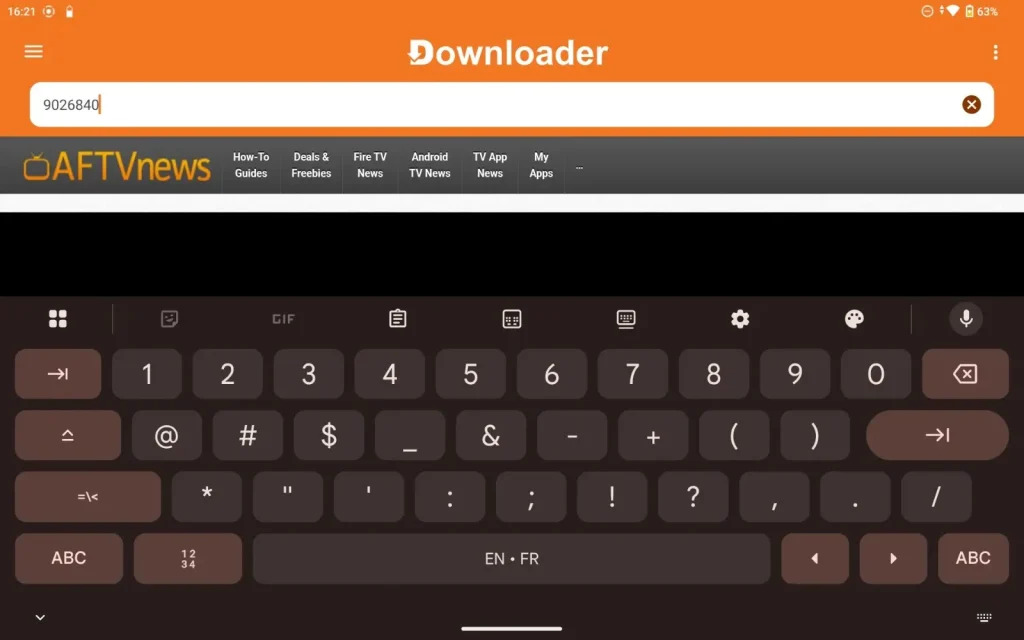
- Now press the Empty Box and type this Code: 9026840 using the keyboard
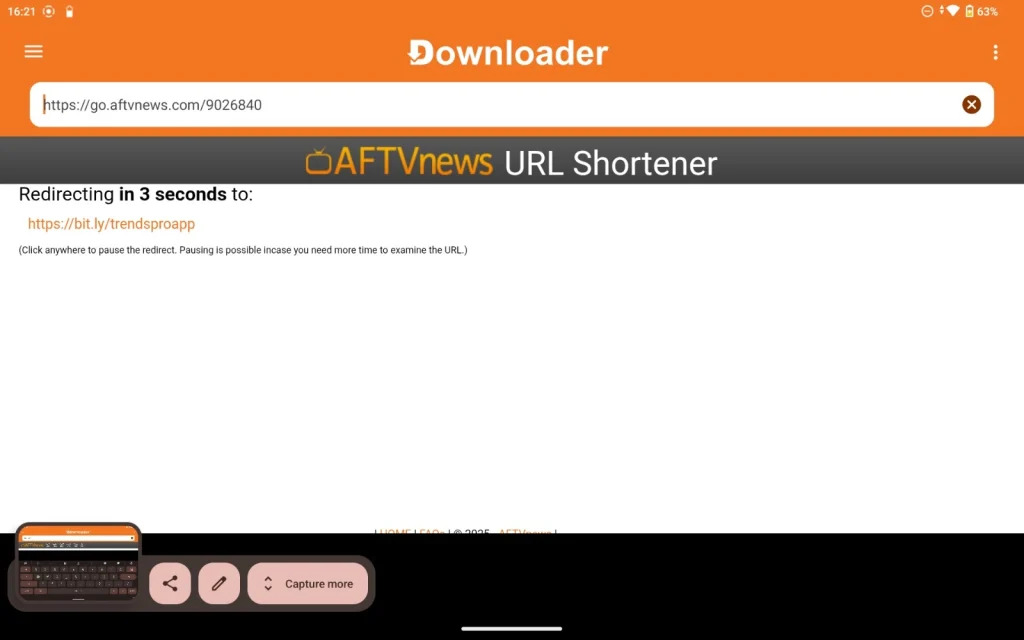
- Wait five seconds; it will then automatically Download and Redirect the software.
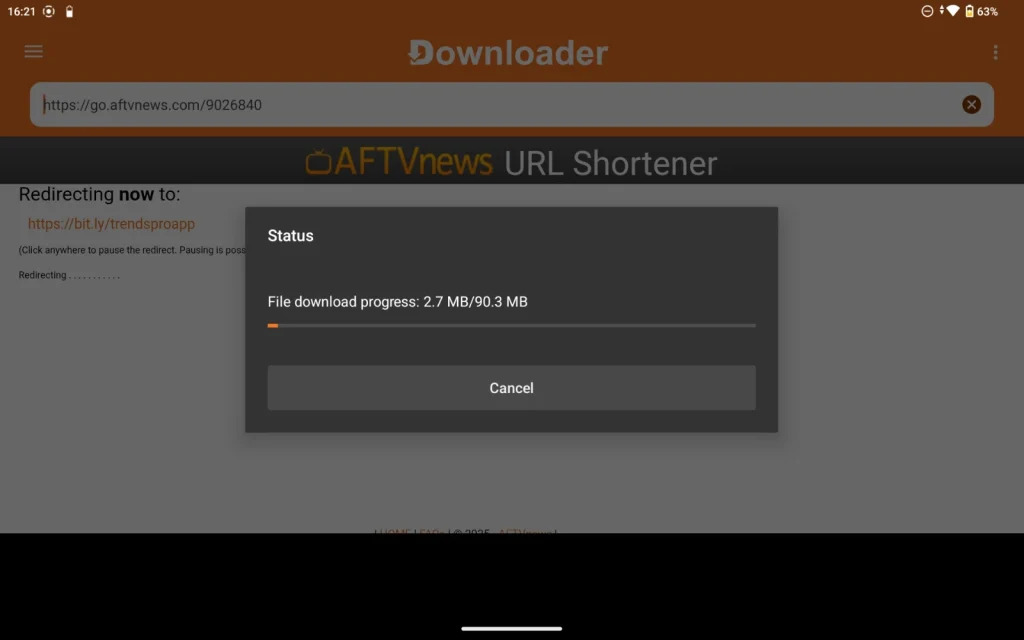
- Downloading will take a while; please refrain from pressing any remote key to prevent interruptions.
- The Installation screen will show once the app is downloaded; press Install.
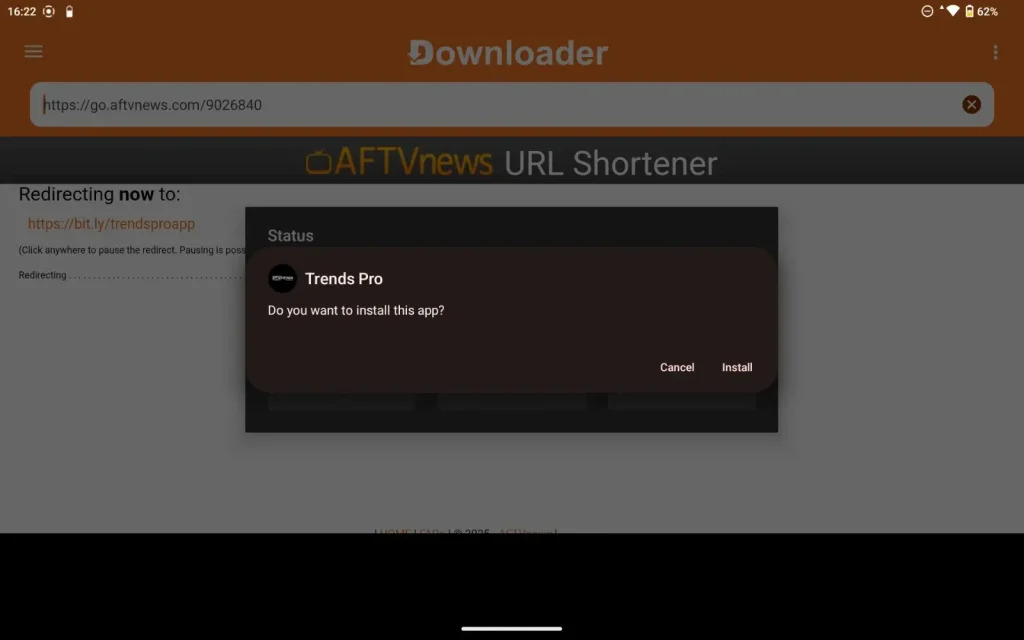
- The installation will take 5 to 10 seconds; once finished, click on Hamburger Menu or Open to start the app.
Get IPTV Trends 3.1 running and set it up
IPTV Trends installation has been finished successfully; now the key step is how to log in. Basically, it is straightforward and easy since our program automatically links you to the best server depending on your location, therefore eliminating the need for you to enter the Portal URL.
If you haven’t gotten your login information, please verify your Inbox or Junk Folder. Once you have the credentials just follow the ensuing steps:
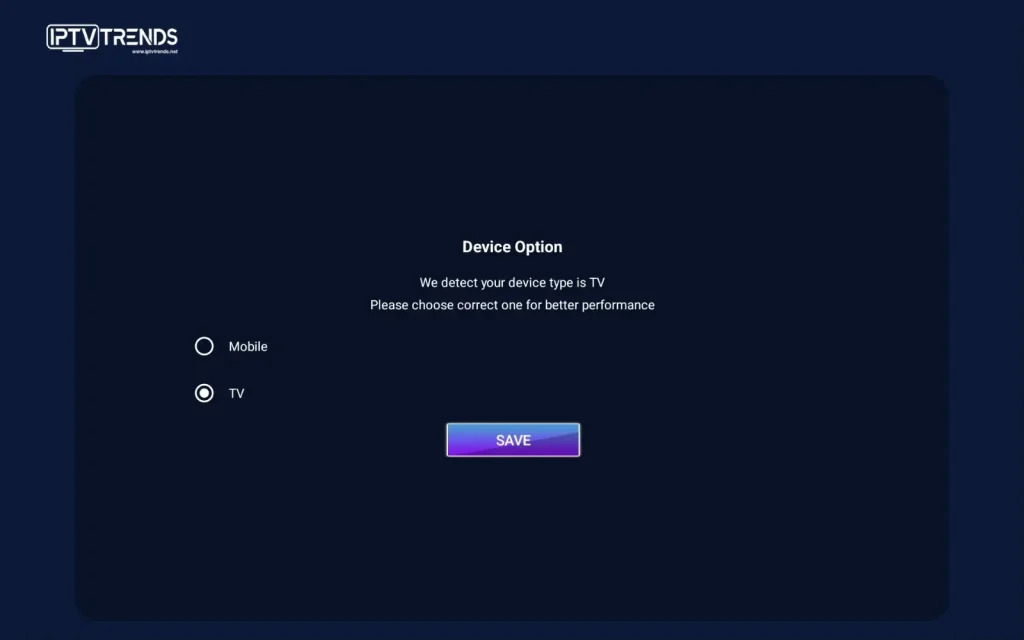
- The software will ask you to select a Device Type when it first starts; it will also check the device you’re using; if not, please check on the device you own. Press Save.
- The Next Screen will prompt you to enter the Username and Password, List Playlists, Connect VPN.
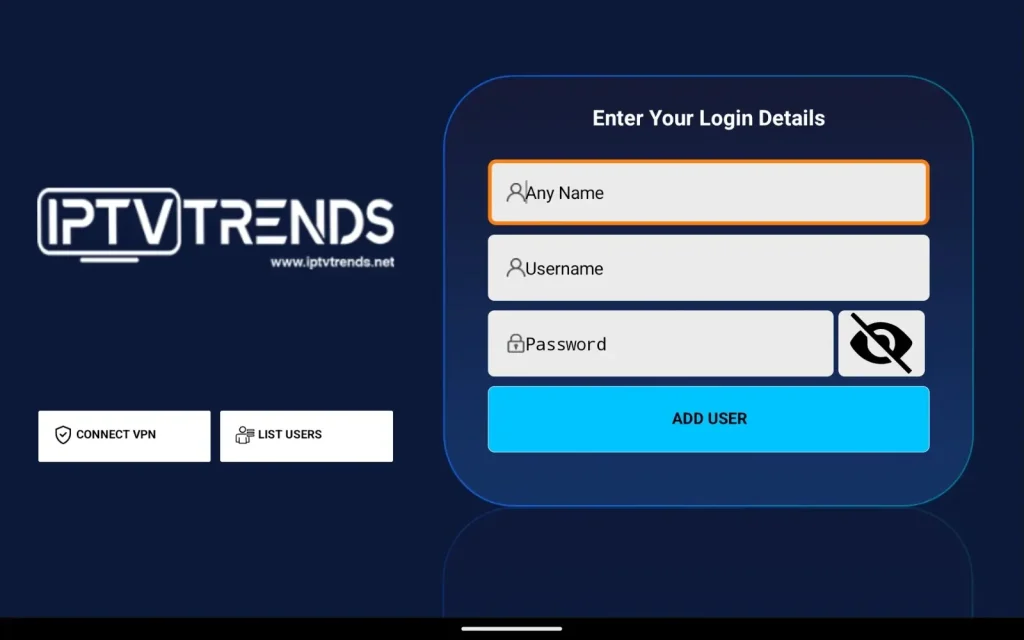
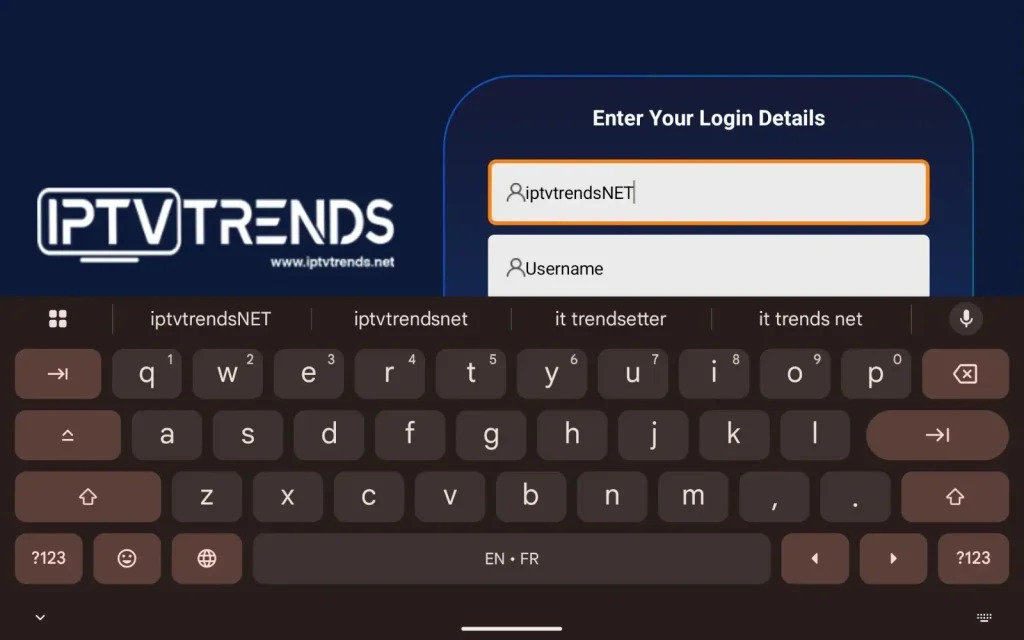
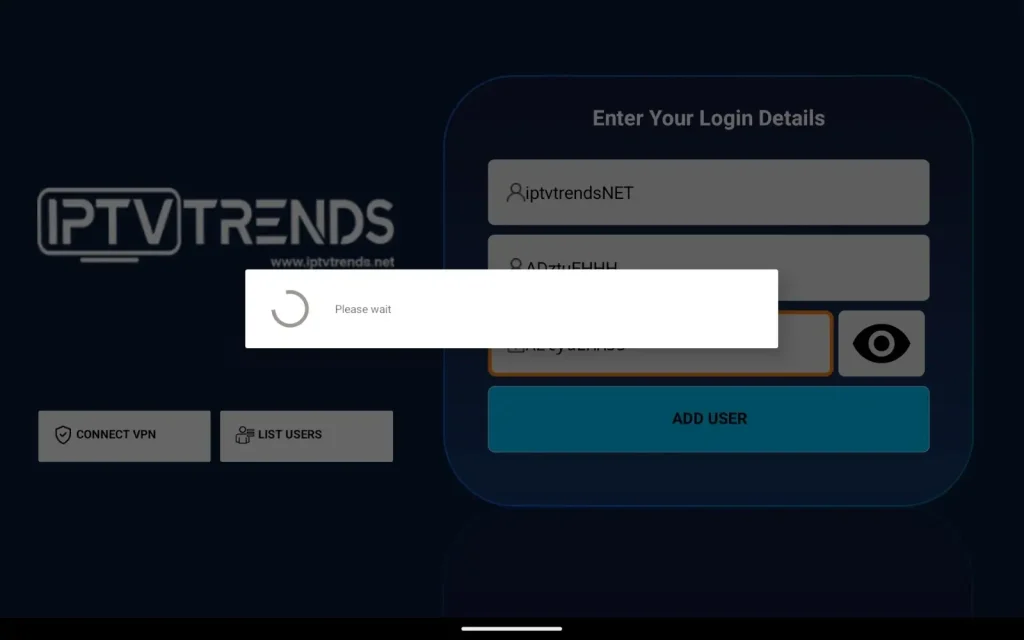
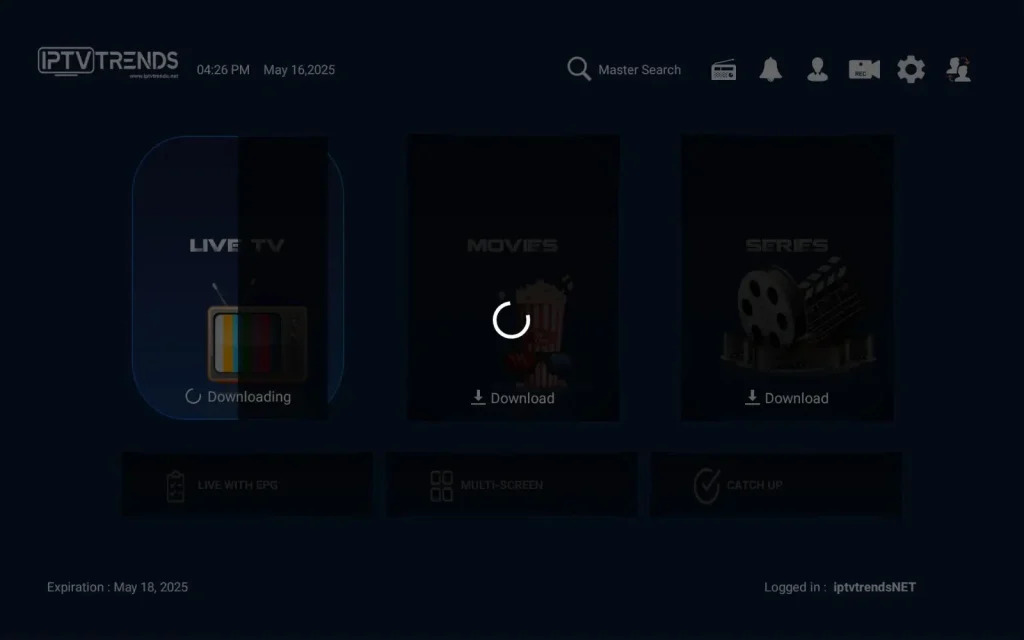
- The Playlist will now be included; you must manually download every section by hovering over live TV, movies, and series and pressing OK.
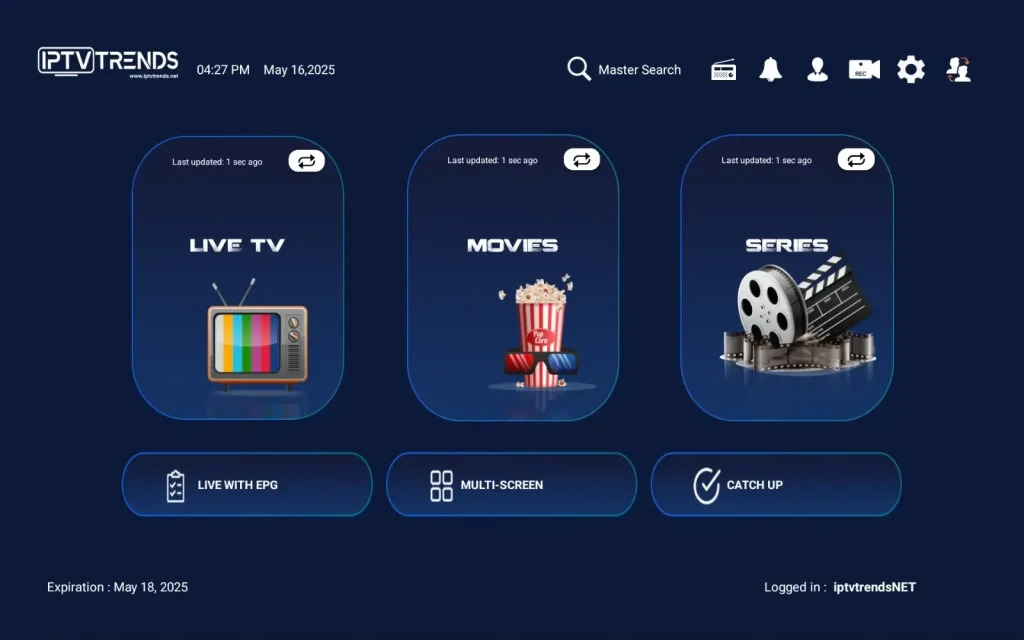
- Once the Content is Downloaded you will be able to access it, so go to Live TV, Movies, or Series.
- Now Highlight any Channel you wish to Stream and hit the OK button to Start Streaming.
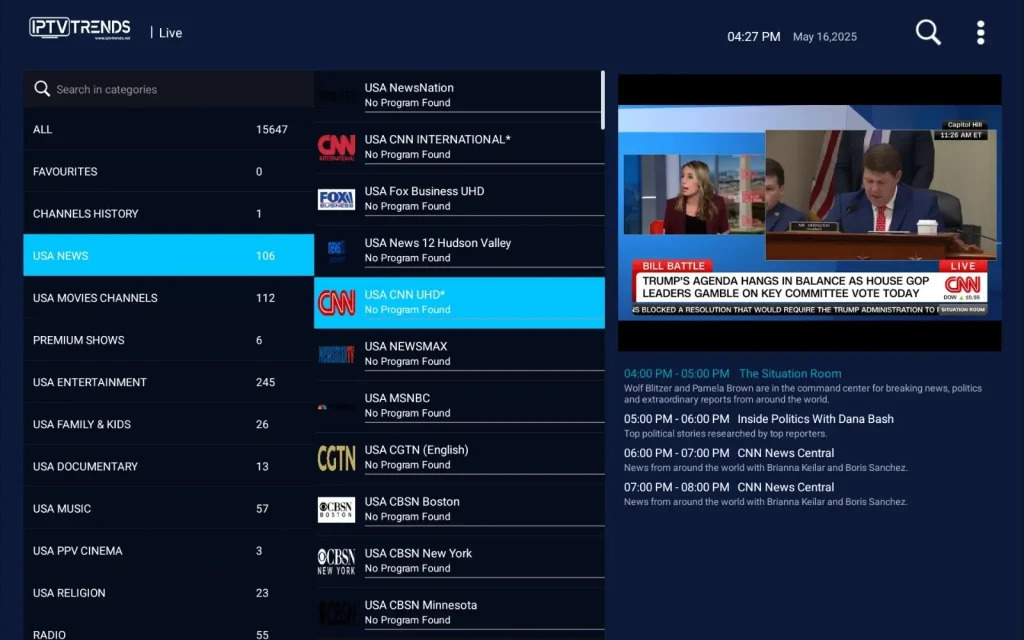
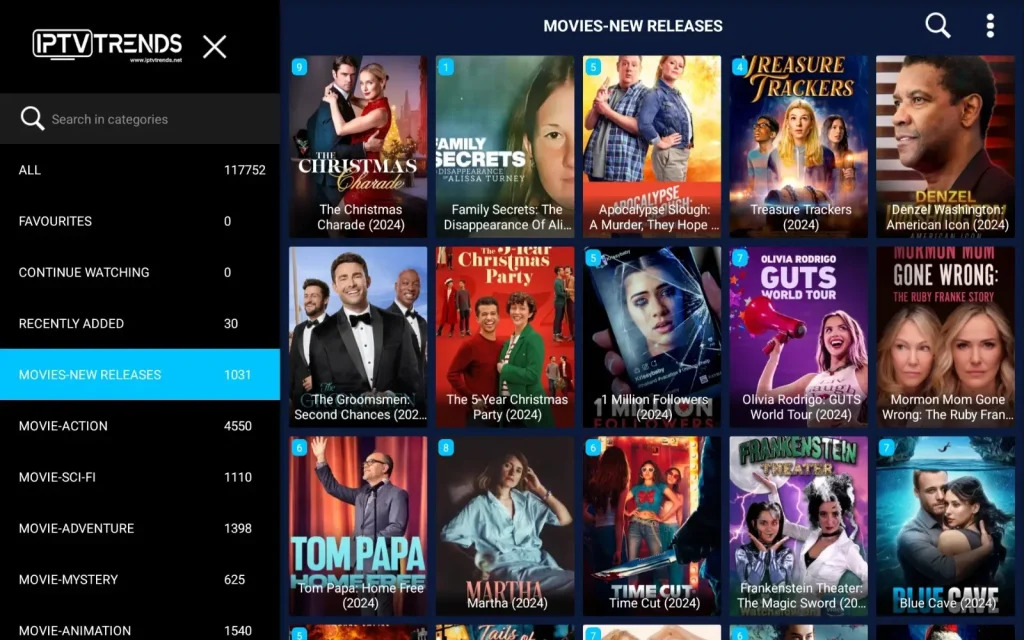
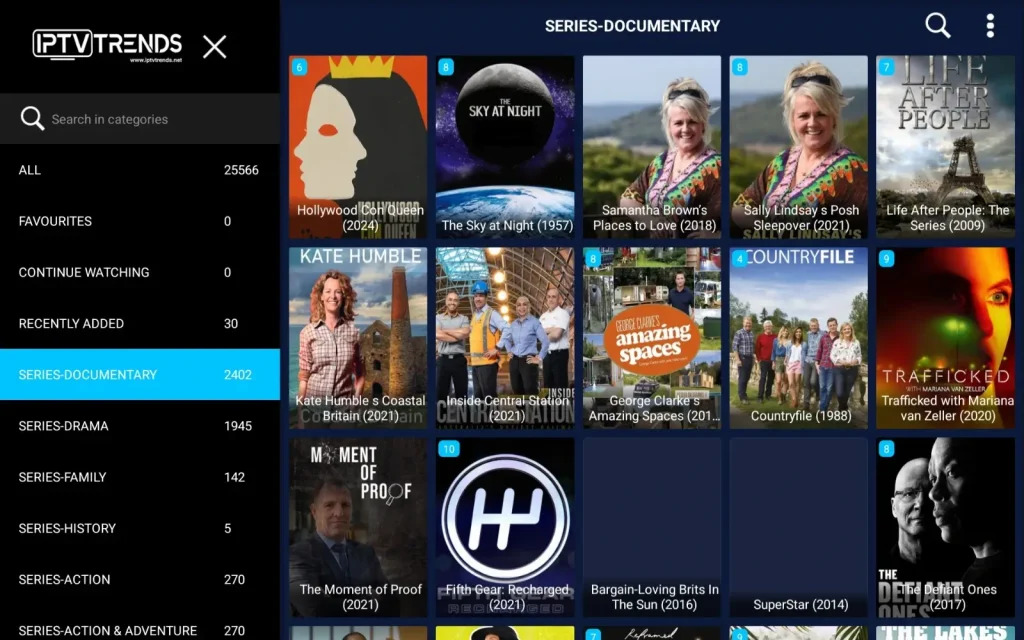
- To access the Full Screen, you may hover over the Screen and press OK once more.

Please remember that usernames and passwords are case sensitive; use the credentials exactly as provided in the email; do not alter them on your end.
I hope this has made the installation easier for you and that you have liked our IPTV Service. With more than 16,000+ Live TV Channels and 60,000+ Movies and Series, we provide the best IPTV service in the globe.
IPTV Trends provides practically any category you want, including Pay-Per-View channels, Live Sports, Movies, News, and the ability to stream anywhere in the globe without limits!