
What is VLC IPTV and Why Use It?
VLC IPTV is one of the most popular and reliable ways to stream live IPTV channels on your computer, smartphone, or tablet — completely free of charge. VLC Media Player, developed by the VideoLAN project, is a free, open-source, and cross-platform M3U player trusted by millions of users worldwide. As one of the best IPTV player options for desktop, it supports virtually every media format and works seamlessly with any IPTV service that provides an M3U file or network stream URL.
Whether you’re accessing a premium IPTV subscription or testing a free IPTV trial, VLC makes IPTV streaming accessible on Windows, macOS, Linux, Android, iOS, and more — no additional hardware needed.

Why Choose VLC for IPTV Streaming?
- Free and open-source — one of the best free IPTV players available on any platform
- Cross-platform — works on PC, Mac, Android, and iOS
- Compatible with all M3U file formats and network stream URLs
- No ads, no paywalls — just clean, reliable IPTV streaming
- Works with any top rated IPTV service or free IPTV M3U playlist
- Ideal IPTV stream player for Windows users looking for a lightweight solution
- Supports recording live programs directly from your IPTV service
How to Add IPTV Channels to VLC — Step-by-Step Guide
Setting up VLC IPTV is straightforward. You only need your M3U URL or M3U file provided by your IPTV service provider, and VLC installed on your device.
Step 1: Download and Install VLC Media Player
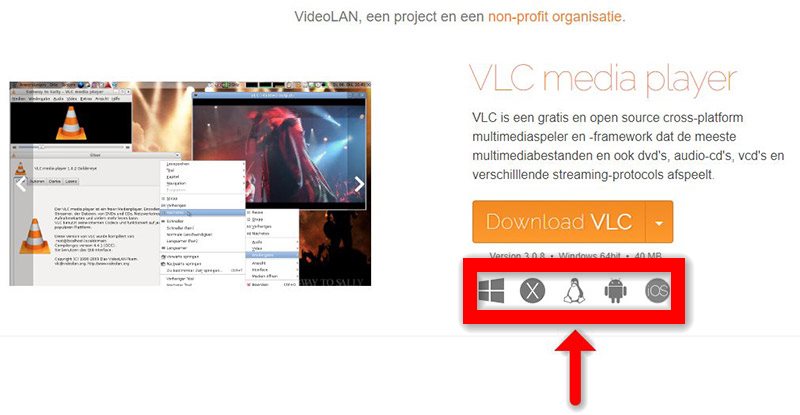
Download VLC Media Player for free from the official VideoLAN website:
🔗 videolan.org/vlc
VLC is available for all major operating systems:
| Platform | Download |
|---|---|
| Windows | Available at videolan.org |
| macOS | Available at videolan.org |
| Linux | Available at videolan.org |
| Android | Available on Google Play |
| iOS | Available on the App Store |
Once downloaded, install VLC following the standard setup process for your operating system.
Step 2: Open the Network Stream
Once VLC is installed and open:
- Click “Media” in the top menu bar.
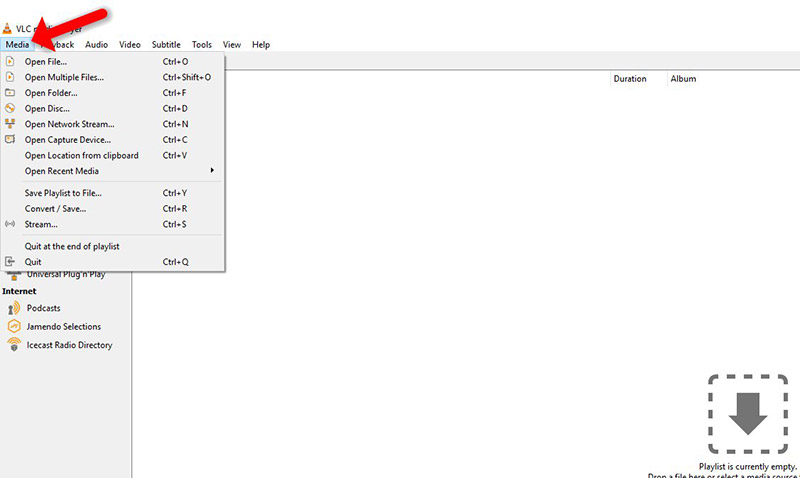
- Select “Open Network Stream” from the dropdown menu.
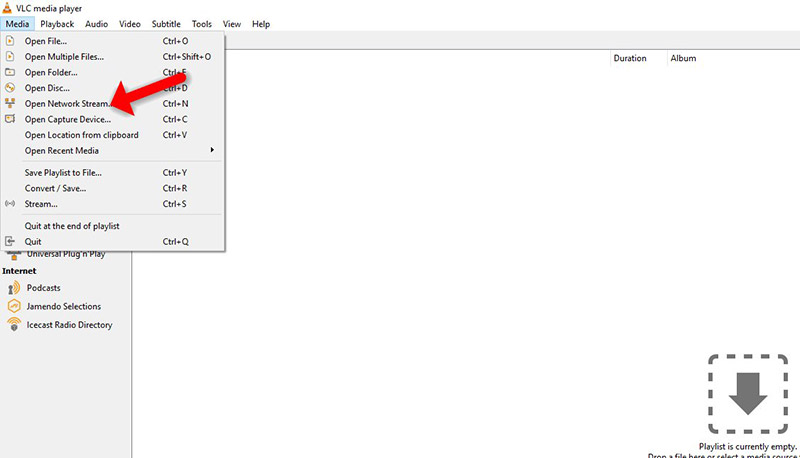
This is the core feature that makes VLC IPTV streaming possible — it allows you to load any live IPTV stream directly from your IPTV service via a URL.
Step 3: Enter Your M3U URL
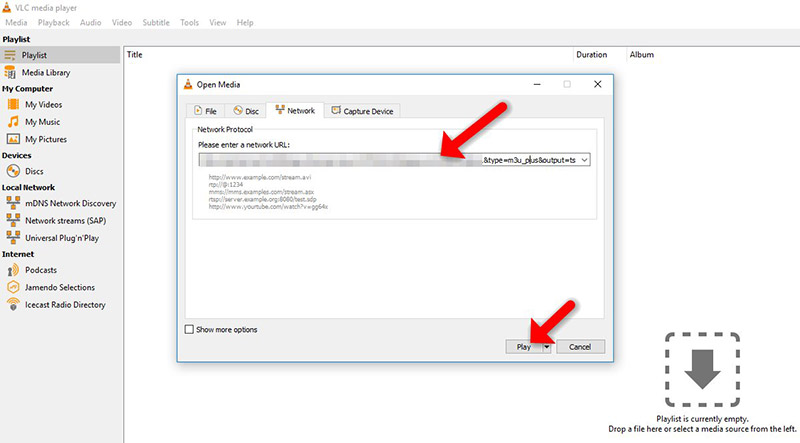
In the network stream dialog box:
- Paste the M3U URL provided by your IPTV service provider into the input field.
- Click “Play” to load the stream.
Note: Most top rated IPTV providers give you access to a personal dashboard where you can generate and manage your M3U URL at any time. If you haven’t yet chosen a provider, look for IPTV services that offer a free IPTV trial so you can test stream quality before committing to a full IPTV subscription.
Your M3U player will now begin loading the full channel playlist from your IPTV streaming service.
Step 4: Access Your IPTV Playlist
Once your M3U file finishes loading:
- Press CTRL + L (on Windows/Linux) to open the VLC playlist view.
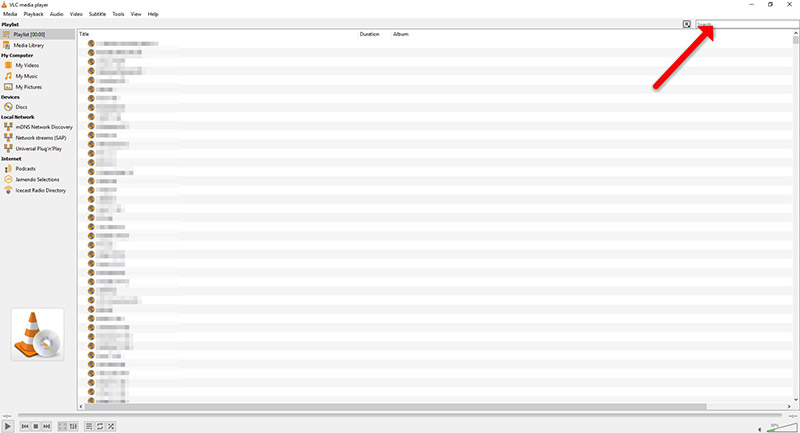
- Your full list of live IPTV channels from your IPTV service will appear.
- Browse or search for your desired channel and click to start streaming.
That’s it — your VLC IPTV setup is complete. You now have access to all channels included in your IPTV subscription directly within VLC.
How to Record Live IPTV Programs on VLC
One of the standout advantages of using VLC for IPTV streaming is its built-in recording capability. Unlike most IPTV player apps, VLC lets you record any live IPTV channel directly to your computer without any additional software.
To record a live program:
- Start playing your desired channel from your M3U playlist.
- Go to “View” → “Advanced Controls” to reveal the recording toolbar.
- Click the red record button to begin capturing your IPTV stream.
- Click the button again to stop and save the recording.
This makes VLC IPTV an excellent all-in-one solution — both an IPTV stream player and a live TV recorder.
VLC IPTV vs Other IPTV Players
While VLC for IPTV is one of the best free IPTV solutions for PC users, there are other popular IPTV player options worth knowing:
| Player | Platform | Best For |
|---|---|---|
| VLC IPTV | PC, Mac, Android, iOS | Free, flexible, cross-platform |
| IPTV Smarters Pro (PC) | Windows | Dedicated IPTV UI |
| TiviMate | Android | Premium Android IPTV |
| Smart IPTV | Smart TV | TV-native interface |
| M3U Player | Multi-platform | Lightweight M3U playback |
For Windows users wanting a true IPTV streaming experience, VLC IPTV remains the most accessible and cost-free option — especially when paired with one of the best IPTV services that deliver a clean, reliable M3U file or URL.
Choosing the Best IPTV Service for VLC
To get the most out of VLC IPTV, you need a reliable IPTV service that provides:
- A working M3U URL or M3U file compatible with VLC’s network stream feature
- A stable server with minimal buffering during live IPTV playback
- A wide channel selection covering your preferred sports, entertainment, and news
- A free IPTV trial so you can verify compatibility with VLC IPTV before subscribing
The best IPTV service providers update their M3U playlist regularly and offer dedicated dashboards to generate your IPTV m3u URL instantly. Look for top rated IPTV services with transparent pricing and strong customer support.
Conclusion
Setting up VLC IPTV is one of the fastest and easiest ways to start watching live IPTV channels on your computer — with zero cost for the player itself. In just four steps — download VLC, open the network stream, paste your M3U URL, and load your playlist — you have instant access to your entire IPTV subscription channel lineup.
Whether you’re using a premium IPTV streaming service or exploring free IPTV M3U playlist options, VLC for IPTV delivers a reliable, full-featured experience on PC, Mac, Android, and iOS.
Have questions about VLC IPTV setup or choosing the right IPTV service? Our expert team is always ready to help.
Explore our affordable IPTV subscription plans, browse our full channel list, and start your free IPTV trial today. With flexible options from top rated IPTV providers, you’ll find the perfect plan for your needs. Contact us and unlock the full potential of your IPTV streaming experience!
FAQs
Q1. What is VLC IPTV and how does it work?
VLC IPTV refers to using the free VLC Media Player as an IPTV stream player to watch live television channels streamed over the internet. VLC connects to your IPTV service by loading an M3U URL or M3U file through its built-in Open Network Stream feature. Once your M3U playlist is loaded, VLC acts as a full M3U player, giving you access to all channels included in your IPTV subscription — with no additional software required.
Q2. How do I add an M3U playlist to VLC for IPTV?
To add an M3U playlist to VLC IPTV, open VLC and go to Media → Open Network Stream. Paste the M3U URL provided by your IPTV service provider into the input field and click Play. Once loaded, press CTRL + L to open the playlist panel, where all your live IPTV channels will appear. This process works the same on Windows, macOS, and Linux — making VLC for IPTV one of the most universally compatible M3U player options available.
Q3. Can I watch live IPTV on VLC for free?
Yes. VLC Media Player is completely free and open-source, making it one of the best free IPTV players available for any platform. However, to access channels, you still need a valid IPTV service that provides an M3U file or M3U URL. Many IPTV service providers offer a free IPTV trial — typically 24 to 48 hours — so you can test stream quality inside VLC IPTV before committing to a paid IPTV subscription.
Q4. What is the best IPTV service to use with VLC?
The best IPTV service for VLC IPTV is one that provides a clean, up-to-date M3U URL compatible with VLC’s network stream. Look for top rated IPTV providers that offer stable streams, a broad channel selection, and a free IPTV trial for testing. The best IPTV services also allow you to regenerate your M3U playlist from a personal dashboard, making it easy to refresh your VLC IPTV setup whenever needed.
Q5. How do I record live IPTV programs on VLC?
To record live IPTV streaming in VLC, start playing a channel from your M3U playlist, then go to View → Advanced Controls to display the recording toolbar. Click the red record button to capture your IPTV stream and click it again to stop. The recording is saved automatically to your default video folder. This built-in recording feature is one of the key advantages of using VLC for IPTV over other dedicated IPTV player apps.
Q6. Is VLC compatible with all IPTV service providers?
VLC IPTV is compatible with virtually every IPTV service provider that delivers channels via an M3U file, M3U URL, or M3U playlist link. Since VLC supports all major media codecs and network stream protocols, it works across the full range of IPTV streaming services — from budget providers to top rated IPTV platforms. If your IPTV service uses Xtream Codes login instead of an M3U URL, a dedicated IPTV player app may be better suited.
Q7. Is IPTV streaming with VLC legal?
IPTV streaming via VLC is completely legal — VLC itself is a free, open-source, and fully licensed media player. The legality of your IPTV streaming depends entirely on your IPTV service provider. Using a licensed and authorized IPTV service with a valid M3U playlist is legal in most countries. However, accessing pirated or unauthorized IPTV streams is illegal regardless of which IPTV player you use. Always choose a legitimate IPTV service for your VLC IPTV setup.
Q8. What is an M3U URL and where do I get one?
An M3U URL (or M3U file link) is the web address of your M3U playlist — a text-based file that contains the stream links for all channels in your IPTV subscription. Your IPTV service provider supplies this URL through your account dashboard or welcome email after you subscribe. Simply copy the M3U URL, paste it into VLC’s Open Network Stream dialog, and your VLC IPTV setup is complete. Most top rated IPTV services let you regenerate your M3U URL at any time directly from your dashboard.