
TiviMate IPTV Player is one of the best Android-based IPTV player apps available today. With over 22,000 monthly searches, it’s the go-to choice for users who want a premium IPTV streaming experience — especially on FireStick devices. TiviMate supports both M3U playlists and Xtream Codes login, making it compatible with virtually any IPTV subscription.
In this guide, we’ll walk you through how to add your IPTV channels to TiviMate via Xtream Codes API, and explore the powerful features that make TiviMate Premium worth every penny.
Setup TiviMate IPTV Player via Xtream Codes – Step by Step
Step 1 – Download and Install TiviMate
Install TiviMate IPTV Player from the Google Play Store: 👉 https://play.google.com/store/apps/details?id=ar.tvplayer.tv
For FireStick users, you can use the TiviMate Downloader code method — search “Downloader” on your FireStick App Store, then enter the TiviMate APK URL to sideload it.
Step 2 – Add a Playlist
Open TiviMate and tap “Add Playlist” from the home screen.
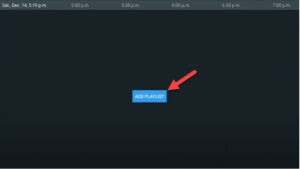
Step 3 – Select Xtream Codes Login
Choose “Xtream Codes Login” from the options and tap Next. This is the most reliable connection method for most IPTV subscriptions.
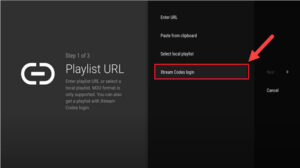
Step 4 – Enter Your Xtream Codes Credentials
You’ll need to enter three pieces of information from your IPTV provider:
- Server Address (e.g.,
http://yourprovider.com:port) - Username
- Password
These details are found in your M3U URL or in your IPTV provider’s dashboard. Most progressive IPTV providers give you a personal dashboard where you can access your credentials directly.
Tip: If you want to access VOD (Video on Demand) content as well as live channels, check the “Include VOD” option before proceeding.
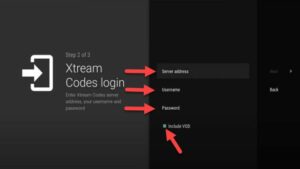
Tap Next and your IPTV channels will load within a few moments.
TiviMate Premium Features
TiviMate is packed with features designed for the best possible IPTV player experience on big screens. Here’s what you get:
Modern UI for Big Screens — Clean, intuitive interface optimized for TV remotes and FireStick navigation.
EPG (Electronic Programme Guide) — Scheduled TV guide with automatic updates, so you always know what’s on. Access it by pressing “TV Guide” while watching any channel.
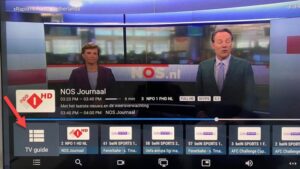
Catch-Up — Miss a show? Catch-Up lets you rewind and watch previously aired content, provided your IPTV provider supports it.
Recording — Record live TV directly within TiviMate Premium. Hold the OK button for 2 seconds while watching a channel to access the recording option from the settings menu.
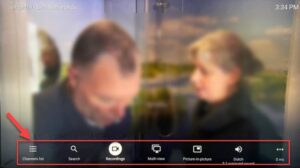
Subtitles (CC) — Enable closed captions by scrolling right on the channel menu and selecting “CC”. Essential for multilingual content.
Favorites — Add channels to your favorites list for quick access. Use the “Add to Favorites” option from the channel menu.
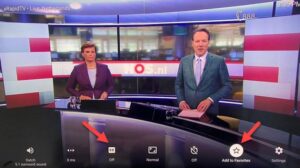
At the end right click on “Setting” to see more options.


Picture-in-Picture — Continue watching while browsing other channels or content.
Auto-Start on Boot — TiviMate launches automatically when your device starts — ideal for FireStick and Android TV box users.
TiviMate Premium / TiviMate Account — The free version covers basic playback. Upgrading to TiviMate Premium unlocks recording, multi-playlist support, and advanced EPG features. A TiviMate subscription is available directly inside the app.
FAQs – TiviMate IPTV Player
1. What is TiviMate IPTV Player?
TiviMate is a premium IPTV player app for Android devices, FireStick, and Android TV boxes. It supports M3U playlists, Xtream Codes, EPG, Catch-Up, recording, and more — making it one of the most feature-rich IPTV players available.
2. Is TiviMate free?
TiviMate has a free version with basic features. For advanced capabilities like recording, multiple playlists, and EPG management, you’ll need TiviMate Premium, available via in-app TiviMate subscription.
3. How do I install TiviMate on FireStick?
Since TiviMate isn’t on the Amazon App Store, FireStick users need to sideload it. Use the Downloader app on your FireStick, enter the TiviMate APK URL, and install it. Make sure “Apps from Unknown Sources” is enabled in Developer Options.
4. What is the TiviMate Downloader code?
The TiviMate Downloader code is a short URL or numeric code you enter in the Downloader app on FireStick to fetch and install the TiviMate APK directly. Check the official TiviMate website for the latest code.
5. What are Xtream Codes and where do I find them?
Xtream Codes is an IPTV delivery system that uses a server URL, username, and password to authenticate your subscription. Your IPTV provider supplies these credentials — usually in your account dashboard or inside your M3U URL.
6. Can I use TiviMate with an M3U playlist instead of Xtream Codes?
Yes. TiviMate supports both Xtream Codes and M3U playlist/URL login methods. When adding a playlist, simply choose “M3U or Xtream URL” and paste your M3U link.
7. How do I enable Catch-Up on TiviMate?
Catch-Up is available automatically if your IPTV provider supports it. No extra setup is needed — just open a channel that supports Catch-Up and use the rewind option in the TiviMate player interface.
8. How do I record on TiviMate?
While watching a channel, hold the OK button for 2 seconds to open the settings menu, then select Recording. Note: Recording requires TiviMate Premium and a connected external storage device or internal storage.
9. Can I use TiviMate on a PC?
TiviMate PC support is possible via Android emulators like BlueStacks. However, TiviMate is optimized for Android TV, FireStick, and Android TV boxes for the best experience.
10. How do I change my email in TiviMate?
Go to Settings → TiviMate Account within the app to update your account email or manage your TiviMate Premium subscription.
Conclusion
TiviMate IPTV Player is without question one of the best IPTV player apps for Android, FireStick, and Android TV box users. Its clean interface, Xtream Codes and M3U playlist support, combined with features like EPG, Catch-Up, and Recording in TiviMate Premium, make it a complete solution for any IPTV setup. Follow the steps above and you’ll be streaming your channels in minutes.