
IPTV Smarters Pro (also known as Smarters Player) is one of the most user-friendly IPTV player apps available today. It lets you watch Live TV, VOD, Series, Catch-Up, and Multi-Screen content across a wide range of devices. Whether you’re using an Android smartphone, FireStick, Apple TV, Samsung or LG Smart TV, or even a Windows PC or Mac, IPTV Smarters has you covered.
One of its standout features is Catch-Up — the ability to rewatch previously aired content. Previously exclusive to MAG boxes, IPTV Smarters brings this feature to virtually every device. The IPTV Smarters subscription unlocks the full potential of the app across all platforms.
Compatible Devices for IPTV Smarters Pro
IPTV Smarters works on:
- Android Smartphones & Android TV boxes (via IPTV Smarters Pro APK)
- iOS Smartphones (iPhone, iPad)
- Samsung & LG Smart TVs
- Apple TV (best IPTV app for Apple TV)
- FireStick (one of the best IPTV apps for FireStick)
- Computer — Windows (IPTV Smarters PC) and MacBook
- Roku via Roku Smarters Player
Where to Download IPTV Smarters
Android devices (Smartphones, Android boxes, Android Smart TVs): 👉 Download the IPTV Smarters Pro APK directly: https://www.iptvsmarters.com/smarters.apk
Samsung Smart TV: Press the Smart HUB button on your remote, search for “IPTV Smarters Pro” and install. Version 1.0.4 is compatible with Samsung Smart TVs.
LG Smart TV: Press Home → LG Content Store, search for “IPTV Smarters Pro” and install. Version 1.0.8 is compatible with LG Smart TVs.
iPhone / Apple TV: Download from the Apple App Store (Smarters Player Lite): 👉 https://apps.apple.com/in/app/smarters-player-lite/id1628995509
Windows PC: Download the EXE installer: 👉 https://www.iptvsmarters.com/download/?download=windows_app
MacBook: Download the DMG file: 👉 https://www.iptvsmarters.com/download/?download=mac
FireStick — How to install IPTV Smarters on FireStick:
- Install the Downloader app from the Amazon App Store.
- Go to Settings → My Fire TV → Developer Options → Install from Unknown Apps → set Downloader to ON.
- Open Downloader, paste the IPTV Smarters APK link, and install.
How to Add IPTV Channels to IPTV Smarters
There are two methods to set up your IPTV subscription in IPTV Smarters:
- Method 1: Setup via Xtream Codes API (recommended)
- Method 2: Setup via M3U Playlist
We recommend Xtream Codes API because it automatically loads your IPTV EPG and enables Catch-Up without any extra configuration.
Method 1 – Setup via Xtream Codes API
Step 1: Install IPTV Smarters Pro on your device (see download links above).
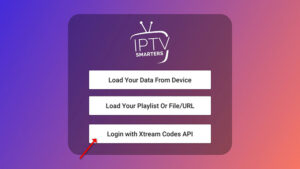
Step 2: Open the app, tap “Add User”, then select “Login with Xtream Codes API”.
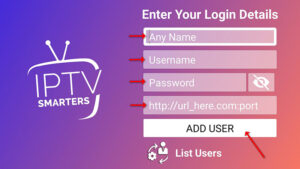
Step 3: Fill in the following fields:
- Name: Any label you prefer (e.g., “IPTV Xtream”)
- Username and Password: Found in your M3U URL or IPTV provider dashboard
- Server URL: Also available in your M3U file or dashboard
Note for Samsung & LG users: The Server URL is different. Use:
http://smart.aabbzz.eu/and enter your Username and Password from your M3U link.
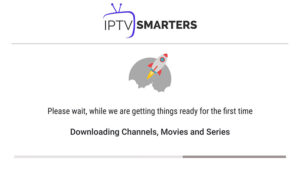
Step 4: Tap “Add User” and wait a few seconds for the channels to load.
Step 5: Tap the “Live TV” icon to browse your channels.
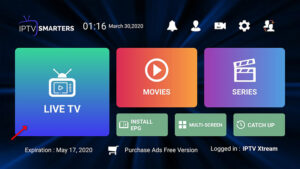
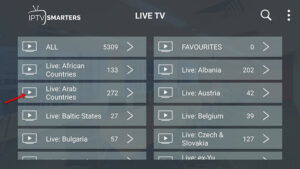
Step 6: Select your channel group, then tap the channel you want to watch.
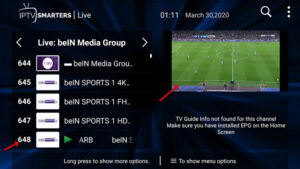
Step 7: Double-tap the small screen to go full screen.
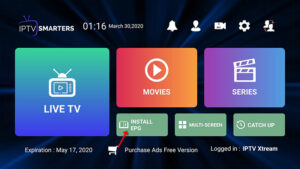
Step 8: For IPTV EPG, simply tap “Install EPG” — no EPG URL needed when using Xtream Codes.
Method 2 – Setup via M3U Playlist
Step 1: Open the app, tap “Add User”, then select “Login with Playlist”.
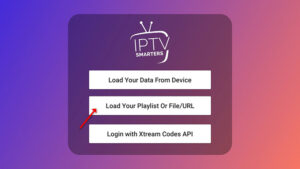
Step 2: Give your profile a name (e.g., “IPTV Playlist”), select “M3U URL”, and paste the M3U playlist URL from your IPTV provider dashboard.
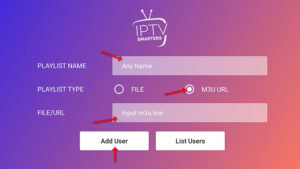
Most progressive IPTV providers generate a personal M3U URL in your account dashboard. Always use the URL rather than a static M3U file to receive automatic channel updates.
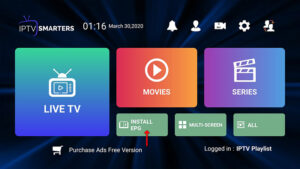
Step 3: To add IPTV EPG, tap “Install EPG” and enter your EPG URL.
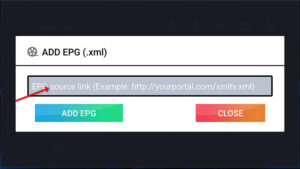
Step 4: Tap “Live TV”, choose your channel group, and enjoy streaming.
IPTV Smarters Key Features
- Live TV, Movies, Series & VOD
- Catch-Up Streaming — rewatch previously aired content
- Recording — record live programs directly in the app
- Multi-Screen — watch up to 4 channels simultaneously
- IPTV EPG support — full Electronic Programme Guide
- Parental Control — integrated for each content category
- Built-in powerful player + support for external players
- Dynamic language switching
- Attractive & user-friendly interface
FAQs – IPTV Smarters Pro
1. What is IPTV Smarters?
IPTV Smarters (also called Smarters Player or iptvsmarters) is a multi-platform IPTV app supporting Live TV, VOD, Series, Catch-Up, and Multi-Screen viewing via Xtream Codes or M3U playlist.
2. Is IPTV Smarters Pro free?
The app is free to download. Some platforms may require an IPTV Smarters Pro subscription for full features. Your IPTV provider subscription is separate from the app itself.
3. Why is IPTV Smarters Pro not on Google Play?
Google removed the app from the Play Store. You can still download the IPTV Smarters Pro APK directly from the official website: iptvsmarters.com.
4. How do I install IPTV Smarters on FireStick?
Use the Downloader app to sideload the APK. Enable “Install from Unknown Apps” under Developer Options in your FireStick settings first. It’s one of the best IPTV apps for FireStick available.
5. What is the difference between Xtream Codes and M3U Playlist setup?
Xtream Codes automatically loads EPG and enables Catch-Up without any extra steps. The M3U playlist method requires you to manually add an EPG URL. Xtream Codes is the recommended method for the best IPTV Smarters experience.
6. How do I fix “Failed to Authorize” on IPTV Smarters?
The “failed to authorize IPTV Smarters” error usually means your Xtream Codes credentials are incorrect or your subscription has expired. Double-check your username, password, and server URL with your IPTV provider.
7. Can I use IPTV Smarters Pro on a PC?
Yes. IPTV Smarters Pro PC is available for both Windows (EXE) and Mac (DMG). Download directly from iptvsmarters.com.
8. Is there a Roku version of IPTV Smarters?
Yes — the Roku Smarters Player is available on the Roku Channel Store, making IPTV Smarters one of the most versatile IPTV player apps across platforms.
9. Can I watch IPTV Smarters on Apple TV?
Yes. IPTV Smarters is considered one of the best IPTV apps for Apple TV. Download it from the Apple App Store as “Smarters Player Lite.”
10. How do I add EPG to IPTV Smarters?
Via Xtream Codes: just tap “Install EPG” — it loads automatically. Via M3U Playlist: tap “Install EPG” and enter the EPG URL provided by your IPTV provider.
Conclusion
IPTV Smarters Pro is a top-tier IPTV player app compatible with virtually every device — from FireStick and Android TV boxes to Apple TV, Samsung/LG Smart TVs, and PC. Its support for Xtream Codes, M3U playlists, IPTV EPG, Catch-Up, and Multi-Screen makes it a complete solution for any IPTV subscription. Follow the steps above to get set up in minutes.