
Your Xbox One is more than a gaming console — with Kodi installed, it becomes a fully featured IPTV streaming hub capable of live TV, VOD, and a complete IPTV EPG programme guide. IPTV for Xbox is one of the most underused streaming setups, and Kodi makes it surprisingly straightforward.
In this guide, we walk through every step to install Kodi on Xbox One, configure the PVR IPTV Simple Client, add your M3U playlist URL, and set up your EPG URL for a complete IPTV streaming service experience on your console.

Why Use Kodi for IPTV on Xbox One?
Kodi is a free, open-source media center with a vast library of Kodi add-ons — and it’s one of the few fully featured IPTV streaming solutions available on Xbox One natively via the Xbox Store. Key reasons to use Kodi for IPTV for Xbox:
- Full M3U playlist and XMLTV EPG support via PVR IPTV Simple Client
- Extensible with Kodi add-ons for VOD, catch-up, and live sports
- Functions as a IPTV service with DVR capability (with compatible add-ons)
- Free to use — just supply your own IPTV streaming service subscription
- Works alongside your Xbox gaming without any hardware changes
Step-by-Step: How to Setup IPTV on Xbox One with Kodi
Step 1 – Install Kodi on Xbox One
- Turn on your Xbox One and ensure it’s connected to the internet.
- Sign in to your Xbox Live account.
- Go to the Xbox Store and search for “Kodi”.
- Click “Get” to download and install Kodi for free.
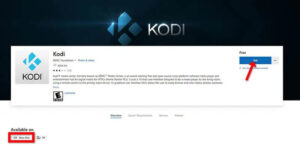
Note: Kodi may occasionally be temporarily unavailable on the Xbox Store. If it doesn’t appear in search results, check back after a few days or visit
kodi.tvfor the latest availability status.
Step 2 – Initial Kodi Setup
Open Kodi once installed. The interface will be empty by default — no channels or Kodi add-ons are included out of the box. Click “Add-ons” from the main menu to get started.
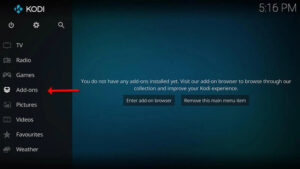
Step 3 – Install PVR IPTV Simple Client
- In the Add-ons menu, click “Download”.
- Select “PVR clients” from the categories list.
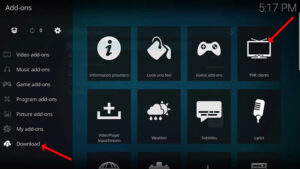
- Find and select “PVR IPTV Simple Client” — the essential Kodi add-on for M3U playlist and IPTV EPG integration.
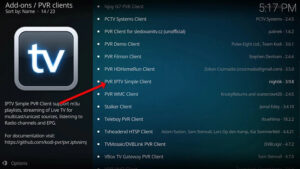
- Click “Install”.
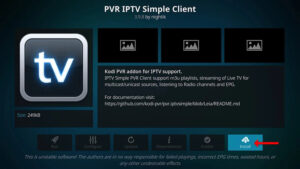
Once installed, you can access it anytime under Add-ons → My Add-ons → PVR clients.
Step 4 – Configure PVR IPTV Simple Client
- Go to My Add-ons → PVR Clients → PVR IPTV Simple Client.
- Click “Configure” to open the settings panel.
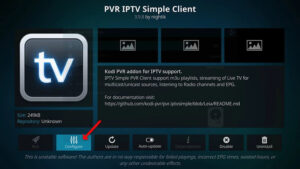
Step 5 – Enter Your M3U Playlist URL
- In the configuration menu, select “M3U Play List URL”.
- Enter the M3U URL provided by your IPTV streaming service provider.
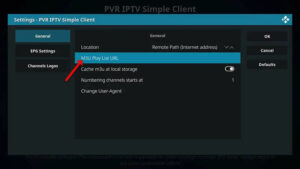
- Click “OK” to save.
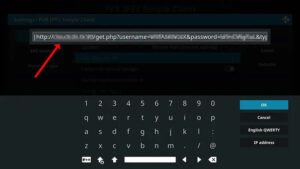
Most reliable IPTV streaming service providers supply an M3U URL via a personal dashboard. Always use the URL version (not a downloaded static M3U file) so your channel list updates automatically.
Step 6 – Add Your EPG URL
- Still in the PVR IPTV Simple Client settings, navigate to “EPG Settings”.
- Select “XMLTV URL” and enter your EPG URL — provided by your IPTV streaming service in XMLTV format.
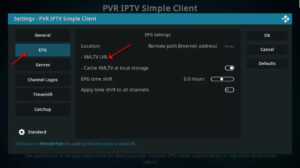
- Click “OK” to save.
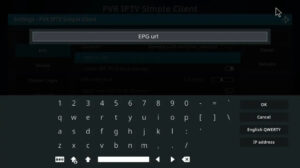
The best EPG for IPTV is always the URL supplied directly by your provider. For channels missing guide data, a free EPG source like
epg.bestcan supplement coverage.
Step 7 – Enable the Add-on
Click “Enable” to activate the PVR IPTV Simple Client. Once enabled, you’ll see a “Disable” option — leave it as is unless you want to deactivate IPTV on Kodi.
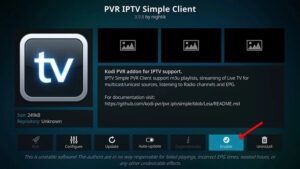
Step 8 – Access Your IPTV Channels
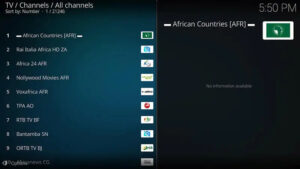
- Return to the Kodi main menu and select “TV”, then click “Channels”.
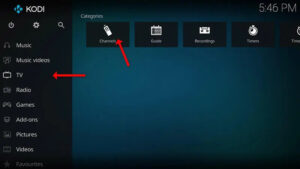
- Wait for the channel update notification to complete.
- Your IPTV streaming channels and IPTV EPG are now ready to browse on your Xbox One.
Using Kodi as an IPTV Service with DVR on Xbox One
One of Kodi’s most powerful — and often overlooked — capabilities is its IPTV service with DVR functionality. With the right Kodi add-ons (such as the built-in PVR backend or third-party DVR clients), you can:
- Schedule recordings directly from the IPTV EPG guide
- Record live IPTV streaming channels to attached storage
- Access recordings from the Kodi library
This makes IPTV for Xbox via Kodi a compelling alternative to dedicated IPTV set-top boxes that include built-in DVR — all at no extra cost beyond your IPTV subscription.
Tips for the Best IPTV Experience on Xbox One
Use a reliable IPTV streaming service — The quality of your IPTV streaming experience depends heavily on your provider. Choose one with stable IPTV servers, 4K channel options, and a good EPG URL for guide data.
Keep Kodi and add-ons updated — Updates to Kodi add-ons and the Kodi app itself bring bug fixes, new features, and improved M3U playlist and EPG compatibility. Check for updates regularly in the Add-ons menu.
Use wired Ethernet — For smooth IPTV streaming on Xbox One, a wired connection is always preferable over Wi-Fi — especially for HD and 4K channels.
Restart Kodi after configuration — After adding your M3U URL and EPG URL, always restart Kodi fully to ensure all settings are applied and channel data loads correctly.
FAQs – IPTV for Xbox One via Kodi
1. Can I watch IPTV on Xbox One?
Yes — IPTV for Xbox is fully supported via the Kodi app, available free on the Xbox Store. Using the PVR IPTV Simple Client add-on, you can connect any M3U playlist URL and EPG URL from your IPTV streaming service to stream live TV on your Xbox One.
2. Is Kodi free on Xbox One?
Yes — Kodi is completely free to download and install from the Xbox Store. You’ll need a valid IPTV streaming service subscription (with M3U or Xtream Codes access) to actually stream channels — but the Kodi app itself costs nothing.
3. What is PVR IPTV Simple Client?
PVR IPTV Simple Client is the core Kodi add-on that connects your M3U playlist URL and XMLTV EPG URL to Kodi’s Live TV interface. It’s the foundation of any IPTV for Xbox Kodi setup and must be installed and configured before channels will appear.
4. What is the best M3U playlist for Kodi on Xbox One?
Your IPTV streaming service provider supplies your M3U playlist URL via your account dashboard. For free options, m3u playlist text file iptv org and similar community resources exist, but quality varies. A paid IPTV streaming service always provides a more reliable and stable M3U URL.
5. Does Kodi on Xbox support EPG?
Yes — after entering your EPG URL (XMLTV format) in the PVR IPTV Simple Client settings, the IPTV EPG programme guide loads automatically in Kodi’s TV section, showing current and upcoming programmes for all your channels.
6. Can Kodi on Xbox One record IPTV streams?
Yes — Kodi can function as an IPTV service with DVR on Xbox One using its built-in PVR recording capabilities. You’ll need compatible storage and the DVR functionality configured via the PVR add-on settings. This makes Kodi one of the few free IPTV streaming solutions that also includes recording.
7. What are the best Kodi add-ons for IPTV on Xbox?
The essential Kodi add-ons for IPTV for Xbox are: PVR IPTV Simple Client (live TV + EPG), Catchup-TV & More (catch-up streaming), and whatever VOD add-ons your IPTV streaming service recommends. Always install from the official Kodi repository.
8. Why isn’t Kodi showing in the Xbox Store?
Kodi is occasionally temporarily removed from the Xbox Store for maintenance or policy updates. If it doesn’t appear in search, check kodi.tv for the current Xbox availability status and try again in a few days.
9. How do I get a free EPG source for Kodi?
A free EPG source for Kodi can be found via XMLTV community repositories such as epg.best. Enter the URL in the “XMLTV URL” field of the PVR IPTV Simple Client settings. These are the same sources recommended as TiviMate EPG sources for users who also run TiviMate on other devices.
10. Is IPTV legal on Xbox One?
Using Kodi with a legitimate IPTV streaming service subscription is entirely legal. The legality of IPTV depends on the provider — licensed services (your ISP’s IPTV, official streaming apps) are legal. Unofficial IPTV providers offering premium channels at unusually low prices may carry legal risk. Always use a reputable IPTV streaming service.
Conclusion
Setting up IPTV for Xbox via Kodi is one of the simplest and most rewarding ways to turn your gaming console into a full IPTV streaming hub. With Kodi add-ons like the PVR IPTV Simple Client, your M3U playlist URL, and an EPG URL from your IPTV streaming service, you get live TV, VOD, a full programme guide, and even DVR capabilities — all for free. Follow the steps above and elevate your Xbox One from gaming console to complete entertainment center.