
Smart IPTV (SIPTV) is one of the most popular IPTV apps for Smart TVs. Unlike traditional satellite or cable television, IPTV delivers TV channels over your internet connection using the IP protocol — giving you access to hundreds of IPTV channels on demand. What makes SIPTV stand out is its universal compatibility: it works across all major Smart TV brands, including Samsung, LG, and Sony.
The app also supports IPTV EPG (Electronic Programme Guide), Picons (channel logos), and channel group organization — making it one of the most complete IPTV player solutions for Smart TVs. To take full advantage of EPG, Picons, and groups, your M3U playlist or M3U URL must be an M3U file with options.
Note: Samsung has discontinued the SIPTV app from the Samsung App Store. See our separate guide on how to install the SIPTV app on Samsung Smart TV.
How to Add IPTV Channels to Smart IPTV (SIPTV) – Step by Step
Step 1 – Download and Install the Smart IPTV App
Download the Smart IPTV app from your Smart TV’s app store. The app offers a 7-day free trial when you first install it. Once the trial expires, you can reactivate it via in-app purchase or by purchasing a license directly on the SIPTV website.
Step 2 – Note Your TV MAC Address
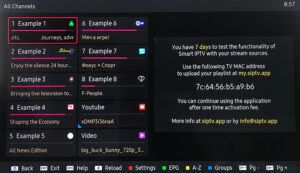
Open the Smart IPTV application. On the welcome screen, your TV MAC address will be displayed. Write it down carefully — you’ll need it in the next step to link your M3U playlist to your device.
Step 3 – Upload Your M3U Playlist
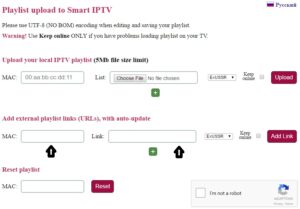
- On a computer or phone, open the SIPTV playlist uploader at: http://siptv.eu/mylist/
- Enter your TV MAC address in the designated field.
- Paste your M3U URL from your IPTV provider (preferred over a static M3U file, as it always pulls the latest channel updates).
- Check the “Keep Online” option.
- Click “Add Link” to save.
-
Tip: Most IPTV providers give you a personal dashboard where you can generate and copy your M3U URL directly. Using the URL instead of a static M3U file ensures you automatically receive new channels and updates from your provider.
Step 4 – Restart the App and Enjoy Your Channels
After uploading your playlist, restart the Smart IPTV app on your TV. Your IPTV channels will now appear, organized by group, with EPG and Picons if supported by your M3U file.
That’s it — you’re all set to enjoy your IPTV streaming on any Smart TV!
Unlocking Adult Content on Smart IPTV
If your IPTV channels include adult content that is password-protected, try the default PIN codes: 0000, 1234, or 1122. These are the most common default passwords used by the Smart IPTV app.
FAQs – Smart IPTV App (SIPTV) Setup
1. What is the Smart IPTV App (SIPTV)?
Smart IPTV (SIPTV) is a dedicated IPTV player app for Smart TVs that lets you stream live TV channels using an M3U playlist or URL. It supports EPG, Picons, and channel grouping, making it one of the best IPTV apps available for Smart TVs.
2. Which Smart TVs are compatible with SIPTV?
The Smart IPTV app works on most major Smart TV brands, including LG, Samsung, and Sony. However, Samsung has removed the app from its app store, so Samsung users need to follow a separate sideloading process.
3. What is an M3U playlist and why do I need one?
An M3U file (or M3U URL) is a playlist format used by IPTV services to deliver channel lists to your player. Your IPTV provider will give you either an M3U URL or a static M3U file to paste into SIPTV. Using the M3U URL is recommended since it always reflects the latest channel updates automatically.
4. How do I find my TV MAC address in SIPTV?
Simply open the Smart IPTV app on your TV. Your TV MAC address is displayed directly on the main screen when you launch the app for the first time.
5. What is IPTV EPG? IPTV EPG
(Electronic Programme Guide) is an on-screen guide that shows current and upcoming TV programmes for each channel — similar to a traditional TV guide. To enable EPG in SIPTV, your M3U file must include EPG data or your provider must supply a compatible EPG URL.
6. What are Picons in SIPTV?
Picons are small channel logos displayed next to each channel name in the SIPTV interface. They help you identify channels quickly. Your M3U file needs to include Picon links for them to appear.
7. Is Smart IPTV free?
The app offers a 7-day free trial. After that, a one-time license fee is required. You can pay via in-app purchase or through the SIPTV website.
8. Why isn’t SIPTV available on Samsung’s App Store?
Samsung has discontinued support for the Smart IPTV app in its app store. Samsung users need to install the app manually via a USB or alternative method. Check our dedicated guide for Samsung SIPTV installation.
9. Should I use an M3U URL or a static M3U file?
Always use the M3U URL provided by your IPTV provider rather than a downloaded static file. The URL ensures your IPTV channels list stays up to date automatically whenever your provider adds or changes channels.
10. What should I do if channels don’t load after setup?
First, restart the Smart IPTV app. If channels still don’t appear, verify your M3U URL is correct and your IPTV subscription is active. Also check that you entered the right TV MAC address on the siptv.eu upload page. For further troubleshooting, see our SIPTV troubleshooting guide.
Conclusion
Setting up Smart IPTV (SIPTV) on your Smart TV is one of the quickest ways to start watching IPTV channels on LG, Samsung, or Sony TVs. With support for M3U playlists, IPTV EPG, Picons, and channel groups, it provides a complete and user-friendly viewing experience. Just download the app, upload your M3U URL, and you’re ready to stream.