
The MAG box is one of the most popular IPTV set-top boxes on the market, trusted by millions of users worldwide as a dedicated IPTV box for live TV streaming. Unlike Android-based devices, the MAG runs its own Linux firmware and connects to your IPTV provider via a portal URL — making the setup quick and straightforward.
Whether you own a MAG 254, MAG 256, MAG 322, or any other model, this guide walks you through the complete MAG IPTV setup process step by step.
What You Need Before You Start
Before configuring your MAG IPTV box, make sure you have:
- Your MAG Device MAC address (found on the sticker on the back of the device)
- A valid IPTV portal URL from your IPTV provider
- Your MAG device connected to your TV and internet (via Ethernet or Wi-Fi)
Your IPTV provider needs your MAC address to activate your subscription on the portal. This is the unique identifier that links your MAG IPTV box to your account.
Step-by-Step: How to Setup IPTV on MAG Box
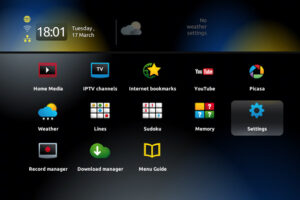
Step 1 – Access the Settings Menu
Power on your MAG set-top box. When the main portal screen loads, press the SETUP / SET button on your remote control to open the Settings menu.
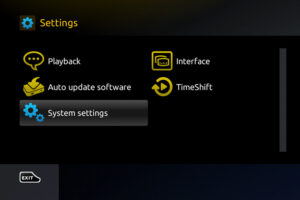
Step 2 – Go to System Settings → Servers
From the Settings menu, select “System Settings”, then tap “Servers”. This is where your IPTV portal configuration lives.
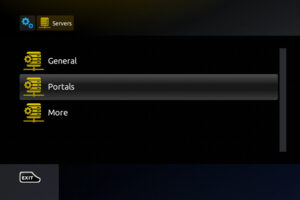
Step 3 – Open the Portals Section
Inside the Servers menu, select “Portals”. This screen allows you to enter the IPTV portal URL that your IPTV provider has given you.
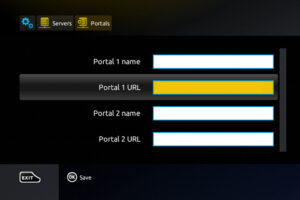
Step 4 – Enter Your Portal Name and URL
In the “Portal 1 Name” field, type a label of your choice — for example, “IPTV”.
In the “Portal 1 URL” field, enter the IPTV portal address provided by your IPTV provider or IPTV distributor.
Important: Before this step, you must share your MAG MAC address with your IPTV provider so they can activate your subscription. The MAC address is printed on the back of your MAG IPTV box.
Step 5 – Save Settings and Configure NTP
Press OK to confirm your portal details. Then press EXIT on your remote and navigate to “General” settings.
In the “NTP Server” field, enter:
pool.ntp.org(global)us.pool.ntp.org(recommended for North America)
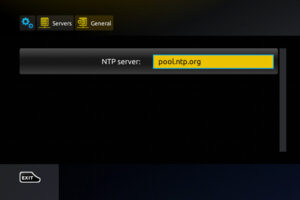
The NTP server ensures your MAG box maintains the correct time — important for accurate IPTV EPG (programme guide) display.
Press OK to save, then press EXIT twice and restart the portal.
Your MAG IPTV box is now fully configured and ready to stream live TV channels!
Unlocking Adult Content on MAG Device
The default password for adult content on MAG devices is 0000, unless it has been changed manually. You can update this PIN in your device settings.
FAQs – MAG Box IPTV Setup
1. What is a MAG Device?
A MAG box is a Linux-based IPTV set-top box manufactured by Infomir. It’s one of the most widely used dedicated IPTV boxes, known for its stability, fast portal loading, and compatibility with virtually all IPTV providers.
2. What is an IPTV portal URL?
An IPTV portal URL is the server address provided by your IPTV provider that the MAG box connects to in order to load your channel list, EPG, and VOD. It replaces the need for an M3U file on MAG devices.
3. Where do I find my MAG box MAC address?
Your MAG Device MAC address is printed on a sticker on the back of the device. It’s a unique 12-character identifier (e.g., 00:1A:79:XX:XX:XX) that your IPTV provider uses to activate your subscription.
4. What is the difference between a MAG box and an Android IPTV box?
A MAG box runs Linux firmware and connects to an IPTV portal URL. An Android IPTV box runs Android OS and uses apps like IPTV Smarters, TiviMate, or STBEmu to stream content. MAG boxes are simpler and more stable for dedicated IPTV use, while Android boxes offer more flexibility.
5. What is STBEmu and how does it relate to MAG?
STBEmu (also known as STBEmu Pro) is an Android app that emulates a MAG set-top box, allowing you to use an IPTV portal URL on any Android device or FireStick — without needing physical MAG hardware. It’s a great alternative if you already own an Android IPTV box.
6. Which MAG device models support IPTV?
Most MAG models support IPTV portal setup, including MAG 254, MAG 256, MAG 322, MAG 324, MAG 410, and MAG 520. The steps in this guide apply to all these models.
7. Why is my MAG box not loading channels?
Check that your IPTV portal URL is entered correctly, your MAC address has been registered with your IPTV provider, and your internet connection is stable. Also verify your NTP server is set correctly — incorrect time settings can prevent the portal from loading.
8. Do I need a wired connection for my MAG IPTV box?
Wi-Fi works for most streams, but for HD and 4K channels a wired Ethernet connection is strongly recommended. It ensures the full bandwidth your IPTV provider delivers is available to your MAG iptv box.
9. Can I use a MAG box with any IPTV provider?
Yes — as long as your IPTV provider supports MAG portal activation and provides you with a portal URL. Always confirm MAG compatibility with your provider before purchasing a subscription.
10. What is the best IPTV box in 2025?
The MAG box remains a top choice for dedicated IPTV set-top box users. Other popular options include the Nvidia Shield (powerful Android TV box), Formuler IPTV box, and Amazon FireStick. The best choice depends on whether you prefer a dedicated STB box IPTV experience or a multi-purpose Android device.
Conclusion
Setting up IPTV on a MAG is one of the simplest and most reliable methods for accessing live TV channels. With just your IPTV portal URL and MAC address, your MAG IPTV box is ready to stream in minutes. Whether you’re new to IPTV boxes or switching from another device, the MAG remains one of the best IPTV set-top box options available.