
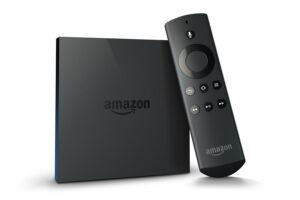
The Amazon Fire TV Stick is one of the most popular IPTV streaming devices on the market. It turns any ordinary TV into a smart entertainment hub — giving you access to IPTV channels, apps, games, and more via its HDMI port. One of the most powerful things you can do with your Fire TV is install Kodi, which unlocks a wide range of Kodi add-ons and turns your device into a full multimedia center.
In this guide, we cover two working methods to get Kodi running on your Fire TV Stick, including how to configure it for IPTV streaming services.
Method 1 – Direct Installation via Downloader App
This is the most reliable method for installing Kodi as an IPTV player app on your Fire TV Stick:
- Go to Settings → My Fire TV → Developer Options.
- Enable ADB Debugging and Apps from Unknown Sources (this is the core step for any jailbroken FireStick setup).
- From the App Store, search for and install the Downloader app.
- Open Downloader and paste the official Kodi download URL, then tap Download.
- Once downloaded, tap Install to complete the Kodi setup.
Kodi is now installed on your Fire TV Stick and ready to use as a full IPTV stream player. You can proceed to configure your IPTV streaming service or explore Kodi add-ons for extra content.
Method 2 – Transfer via Apps2Fire (Android Phone Required)
If the first method doesn’t work on your device, this alternative uses your Android phone as a bridge:
- On your FireStick, go to Settings → My Fire TV → Developer Options and enable Apps from Unknown Sources.
- Note your FireStick’s IP address under Settings → My Fire TV → About → Network.
- On your Android phone, install the Apps2Fire app from the Play Store, and enter your FireStick’s IP address.
- Install Kodi on your Android phone.
- In Apps2Fire, tap Menu → Upload, then select Kodi from your app list.
The installation will begin on your FireStick. If you encounter an error, your device may not support this method — use Method 1 instead.
Next Steps: Set Up IPTV on Kodi
Once Kodi is installed, you can configure it with your IPTV player app or IPTV subscription using an M3U playlist. This makes your FireStick a complete IPTV streaming box.